


Incorrect shipping addresses create extra work—and it always comes up later: when creating the shipping label, during returns, and sometimes even when transferring the data to the inventory management system. This plugin checks the shipping address for every order internationally, automatically applies clear corrections, and flags orders that need to be manually corrected by an employee—for smoother processes and fewer returns.
Your customer’s address in the CRM is never changed. Only the order’s shipping address is corrected. The order creation process does not wait for the result of the verification; that runs independently in the background afterward. The order remains in its verification status for only a brief moment—usually just a few minutes—which is a fraction of the time that an incorrectly addressed shipment would cost later on.
Hier kannst du das PlentyOne-Plugin herunterladen.
Features #
- International Address Validation – Not Limited to German Addresses.
- It also recognizes and verifies Packstation and post office branch addresses.
- Automatic application of valid, unambiguous corrections to street, city, ZIP code, additional line, and state.
- The order is paused during the review and is then automatically set to a status that you can specify individually for each result—or restored to the status it had previously.
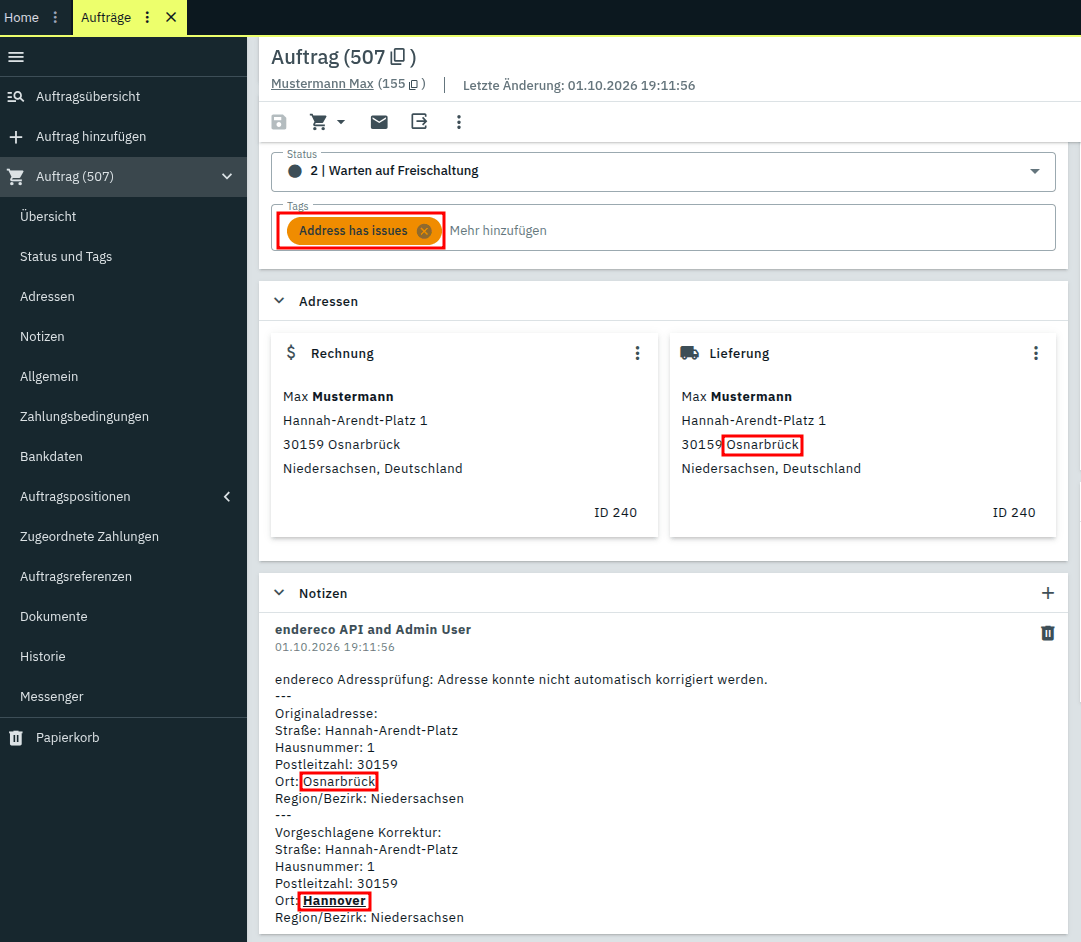
- Tags are added to the order, and you can view the results in the order overview.
- A comment on the order stating the results of the review in plain language—which can be disabled if desired. This transparently documents exactly what was corrected.
- The complete result is also displayed in the task properties—and serves as a way to undo the correction if you want to revert it.
- Automation Building Blocks → Flow: You can decide for yourself when to run a check, and thus have a job that has already been checked re-checked as needed—for example, after a manual address correction.
And, of course, all of this is GDPR-compliant.
Getting Started and Prerequisites #
You need two things:
- An API key from endereco. You can here .
- A set of plugins associated with a client. It usually makes sense to use the default client here. Without this link, no plugin code will run—neither the cron job nor the response to new orders.
Attention: If nothing happens after installation, first check under Plugins → Plugin Set Overview, whether your plugin set is linked to a tenant. This is the most common cause and isn't mentioned in any error message.
Here's how to set up the plugin:
- Install the plugin in your plugin set and redeploy the plugin set.
- Deploy the plugin set a second time. This is not a precautionary measure: PlentyONE does not perform the plugin's setup steps during the first deployment after installation. Without the second run, the plugin will be missing its table and order properties, and the log will contain error messages about a missing table.
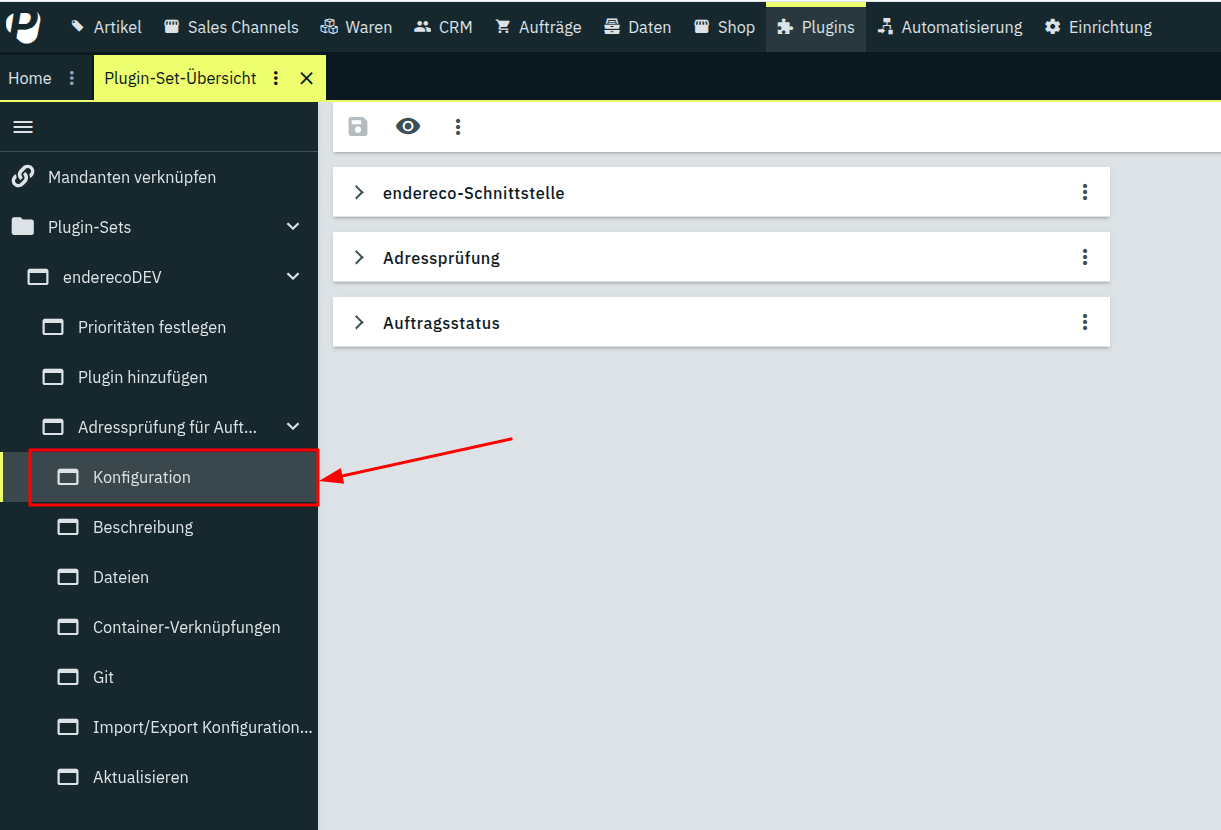
- Open Plugins → Plugin Sets, click on the name of your set and then on the plugin within it; here, in the left-hand pane, you'll find the "Configuration" option.
- Wear it in the tab endereco interface Enter your API key and save it.
Plugin Configuration #
„endereco Interface“ tab“
| Setting | Standard | Meaning |
| Address of the endereco service | https://endereco-service.de/rpc/v1 | This usually remains unchanged. |
| API Key | empty | Your API key from endereco. Required field. |
„Address Validation“ tab“
| Setting | Standard | Meaning |
| Processing | Normal | To mute the plugin without deactivating it in the plugin set: With „Let it run out“ or „Stop completely,“ the plugin’s flow action remains available but does nothing—flows that use it won’t break as a result, unlike with a complete deactivation. „Let it run out“ continues to process the queue, while „Stop completely“ freezes both immediately. |
| When should orders be flagged for review? | As soon as an order is received | Alternatively, you can do this only through a flow that you set up yourself. In either case, the flow action remains available for use. |
| Apply minor corrections automatically | one | Enter clear, minor corrections directly into the shipping address—see the note below for what counts as „minor.“. |
| Record the result as a comment on the order | one | After each completed exam, write a comment with the result in the order notes. |
| User ID for comments | 1 | The numerical ID of a backend user under which the result comment appears on the order. Without a valid ID, no comment will be posted. A user ID with admin privileges is recommended. |
Note: Orders received while in „Let Run“ or „Stop Completely“ mode are not automatically flagged for review—not even retroactively when you switch back to „Normal“ later. There is no automatic follow-up process that retrieves overlooked orders. If you still want to have such orders reviewed, you must manually flag them yourself using a flow with the action „Flag order for address verification.“.
„Order Status“ tab“
| Setting | Standard | Meaning |
| Status: Waiting for address verification | 3.2 (On Hold) | The status assigned to the job when it is placed in the queue for review. |
| Target Status: Address Correct | 0 (previous status) | Order status when the address has been confirmed as correct. |
| Target Status: Minor correction applied | 0 (previous status) | Order status when a minor, verified correction has been automatically applied. |
| Target Status: Correction suggestion(s) available | 0 (previous status) | Order status when one or more suggested corrections exist but have not been automatically applied—regardless of whether exactly one is too uncertain or multiple possible addresses were found. |
| Destination status: No address found | 0 (previous status) | Order status when endereco was unable to suggest a correction. |
Note: „Status: Waiting for Address Verification“ does not trigger the verification—the plugin sets this status itself as soon as an order enters the queue, not the other way around. If you want a specific order status to trigger a check, set up a flow for that (see „Advanced Usage“ below).
Note: „0" means the same thing for every target status: restore the status the job had before the check. If a specified status ID does not (or no longer) exist on your system, the same thing happens automatically—the previous status is restored, and nothing gets stuck.
How a job is added to the queue #
There are two ways for a job to enter the plugin's queue:
- Automatically, when the order is received – The default scenario, controlled by the setting „When should orders be flagged for verification?“ (the „Address Verification“ tab). Every new sales order with a shipping address is flagged immediately upon creation.
- Via a flow, using the „Mark for Address Verification“ action“ – You decide when the check takes place—for example, only after payment has been received (see „Advanced Features“ below). This action also works for an order that the plugin has already completed—the automatic flag, on the other hand, generally takes effect only once when the order is created.
In both cases, the same thing happens: the plugin queues the job, holds it at the configured start status (default: 3.2 | On Hold), and sets the tag Address validation pending. An order that is already undergoing a review will not be flagged a second time, regardless of what triggered the initial flag.
Here's How an Exam Works #
Once a job has been queued, the verification process continues in exactly the same way—regardless of how it entered the queue:
- A cron job automatically processes the queue every five minutes, retrieving up to 50 queued jobs and checking them one by one.
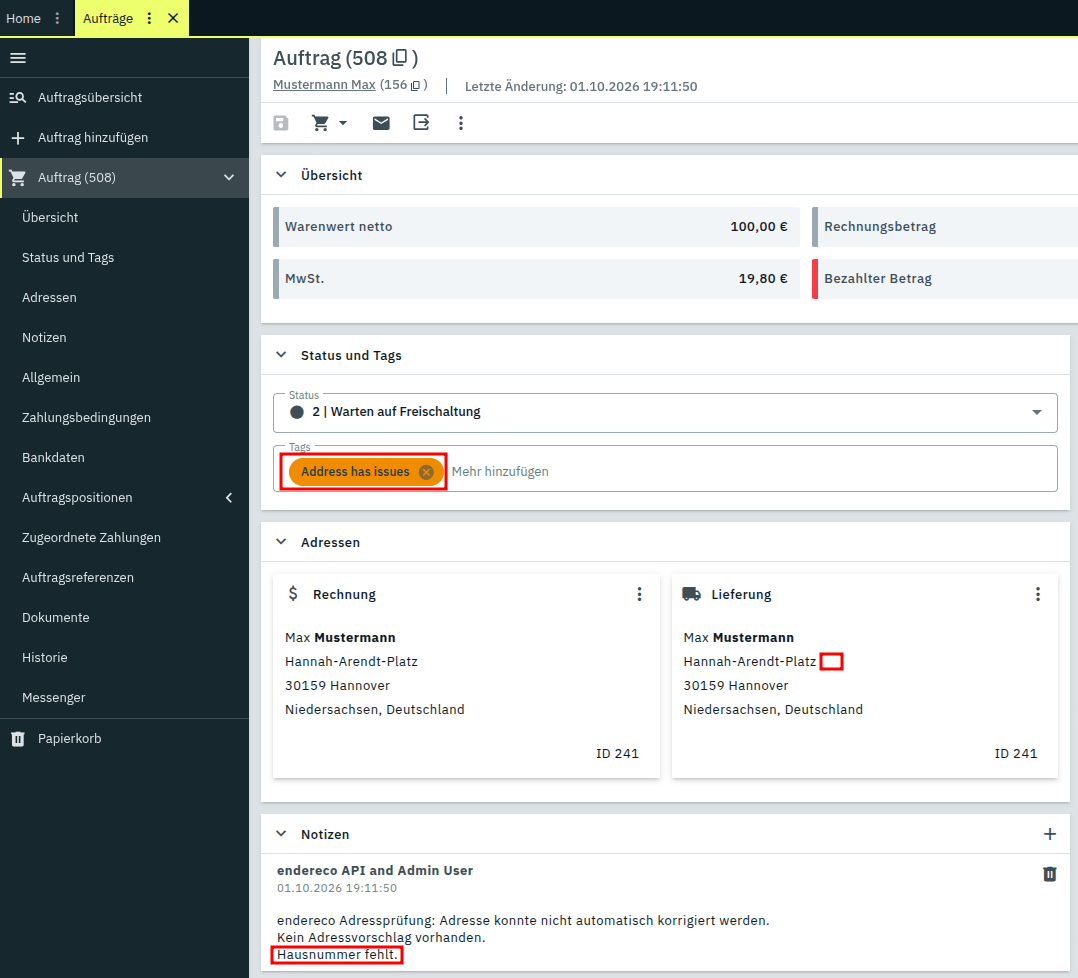
- The result is added to the order: tags, properties, a comment (if desired), and—if necessary and permitted—the corrected shipping address. If the address could not be corrected—for example, due to a missing house number—this is also noted in the order notes.
- The order is assigned the target status configured for this result.
Note: The check does not run immediately upon receipt of the order, but within the next five minutes at the latest. With up to 50 orders per run, the plugin processes up to 600 orders per hour, verifying them without overloading your system—even during periods of high order volume, such as the holiday season, or when a large number of orders are imported all at once.

| Result | Tags on the order | Shipping Address | Target Status (Default) |
| The address was correct | Address is valid | unchanged | previous status |
| Clear correction, accepted | Address is valid + Address corrected | corrected | previous status |
| Correction found, not applied (checkbox not selected, correction not specific enough, or multiple possible addresses found) | There are issues with the address | unchanged | previous status |
| No meaningful correction is possible | There are issues with the address | unchanged | previous status |
| Address validation failed; all attempts have been used up | Address validation failed | unchanged | previous status |
Note: In PlentyONE, tags are always displayed in English regardless of the backend language, even though the plugin also provides German translations—a limitation of PlentyONE itself. This guide therefore refers to the tags in English throughout, just as you would see them in a German-language backend.
Note: Automatic corrections are limited to what can be corrected without supervision: exactly one suggestion and only a minor, clear error—such as a different spelling („Lindenstraße 5„ to “Lindenstr. 5”), a single missing letter, or a single incorrect digit in the ZIP code.
The comment on the order
If the „Record result as a comment on the order“ setting is enabled, the plugin leaves an internal comment (not visible to the customer) after each completed check, containing the result in plain text, for example:
- „endereco Address Verification: Address is correct.“
- „endereco Address Validation: Address automatically corrected.“
- „endereco Address Validation: The address could not be corrected automatically.“ – with the suggested correction or the reason listed below it, such as „House number missing.“
What Remains of the Assignment
Under Features You'll find the complete results right next to the order. The address fields are listed in pairs—the value before the check and the suggested value—one directly below the other.
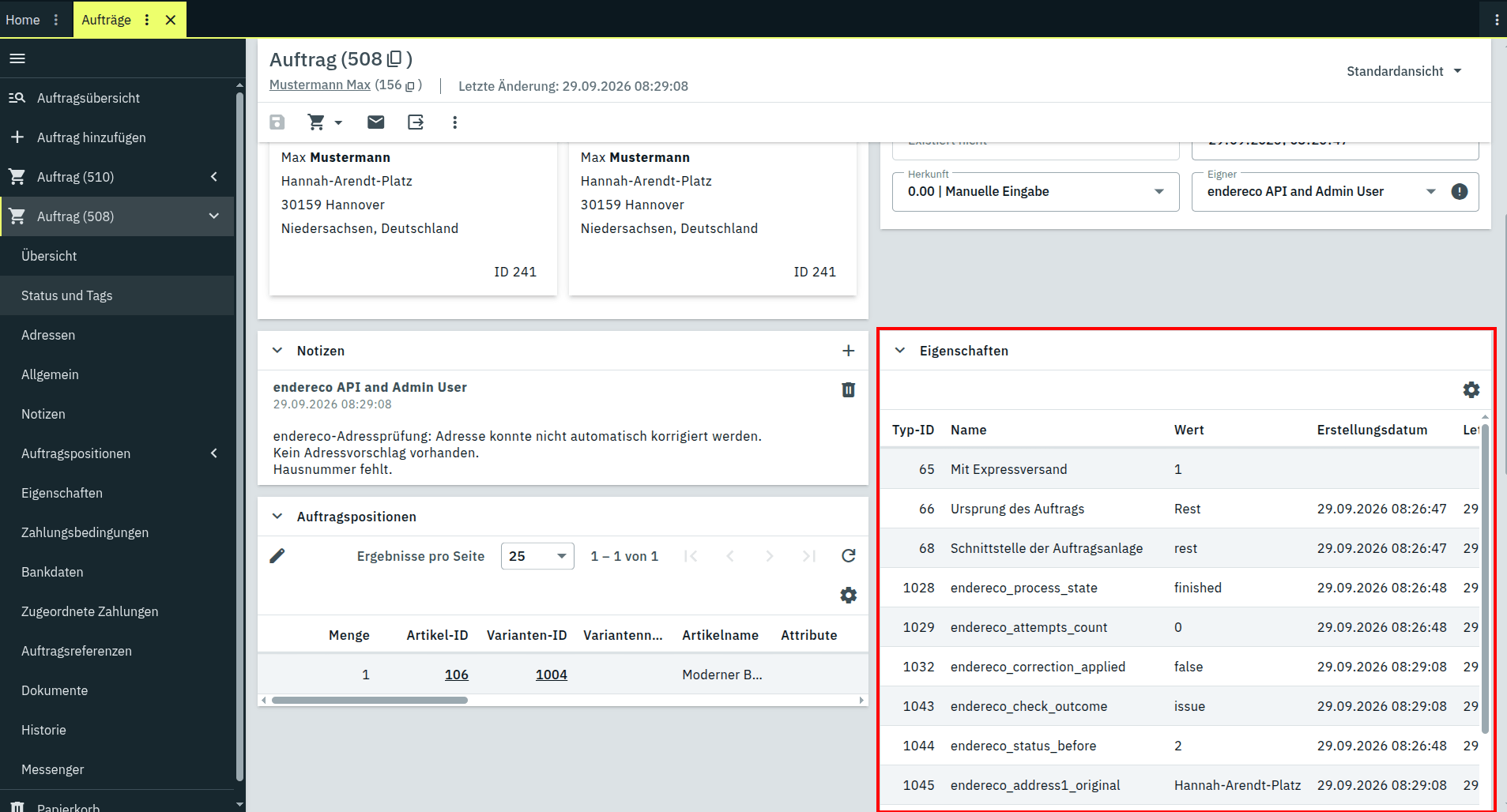
| Property | Content |
| endereco_process_state | enqueued, checked or finished – internal field for the process; no result |
| endereco_check_outcome | correct, corrected, issue or failed |
| endereco_correction_applied | whether a correction was entered |
| endereco_attempts_count | Number of unsuccessful attempts – usually remains at 0 |
| endereco_status_before | the order status before the review |
endereco_address1_original / _suggestion | Previous street and suggested street |
endereco_address2_original / _suggestion | Previous house number and proposed house number |
endereco_address3_original / _suggestion | Previous and suggested address supplement |
endereco_address4_original / _suggestion | "Free additional field" previously and suggested |
endereco_postal_code_original / _suggestion | Previous ZIP code and suggested ZIP code |
endereco_town_original / _suggestion | Previous location and proposed location |
endereco_subdivision_original / _suggestion | State/Region as an ISO code |
Note: The fields marked with _original are your fallback: they show the address as it was before the correction. You can restore it at any time, either manually or via a flow. If there was no suggestion (e.g., „no address found“), the _suggestion fields will show “none”; if there were multiple possible addresses, they will show “multiple.”.
Advanced Use: Other Things You Can Do with Flows #
The flow integration is intentionally kept open—the "Mark Order for Address Verification" action can be combined with any trigger and any other action that Plenty Flow offers. The following two examples are typical use cases, but they represent only a small fraction of what is possible.
Example: Review only after payment is received
Do you only want to review orders that are actually being shipped? Then set the time yourself.
- Position When should orders be flagged for review? on Only through a workflow that you set up yourself.
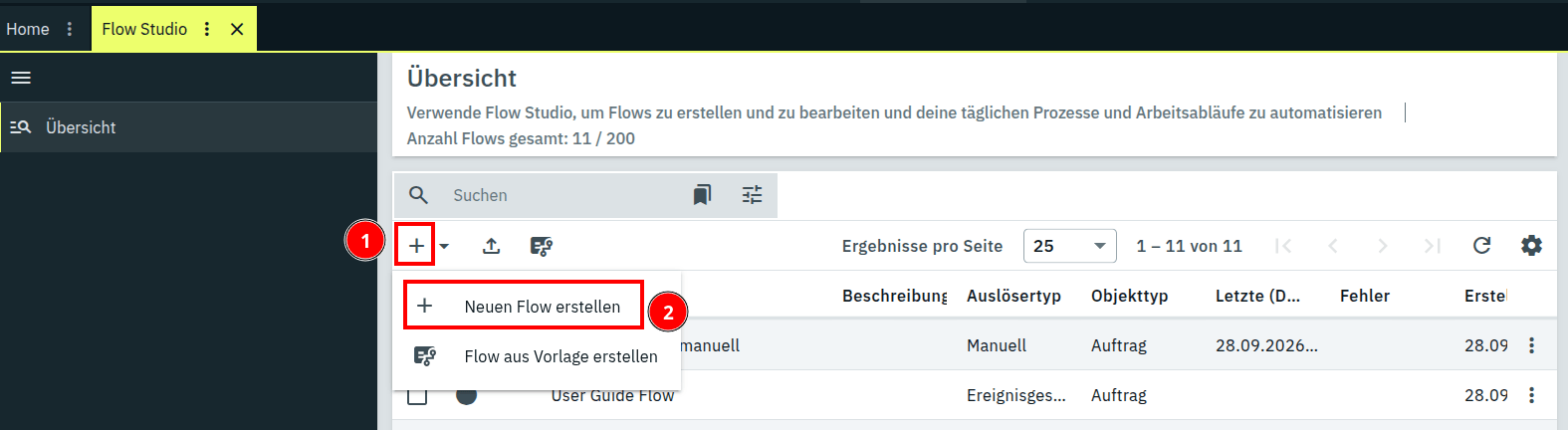
- Open Automation → Flow Studio, click on the +-icon and select "Create New Flow.".
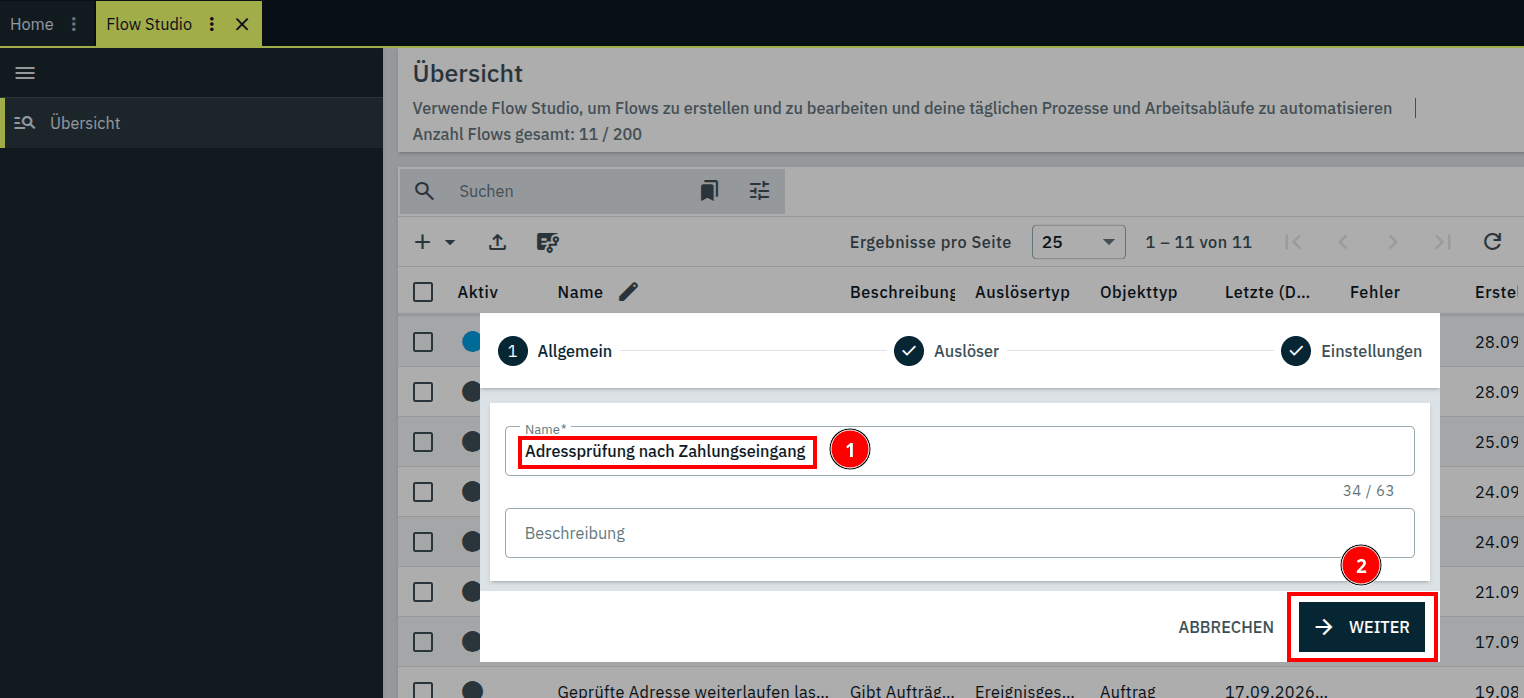
- Give the flow a name, such as Address Verification After Payment Is Received.
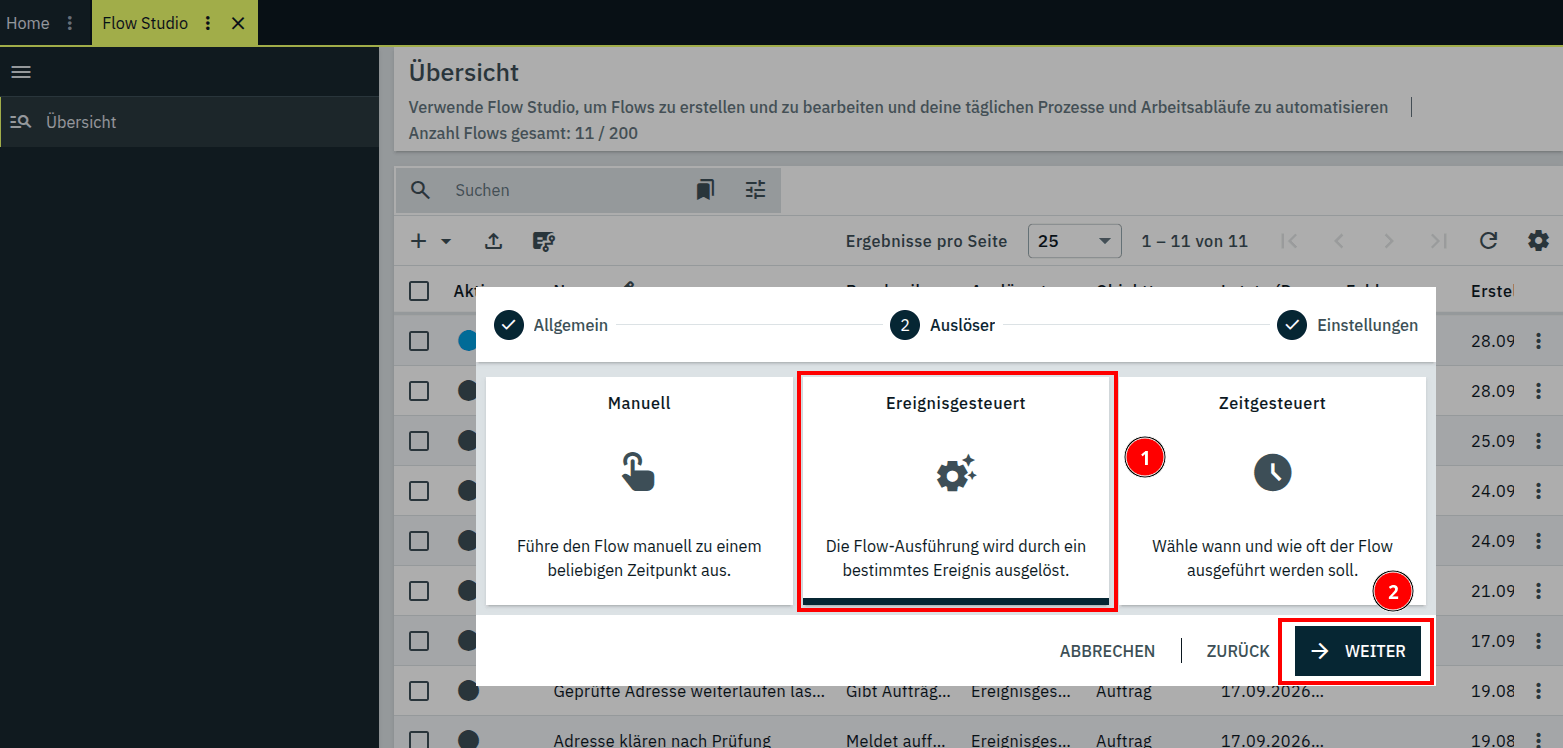
- Select as a trigger Event-driven.
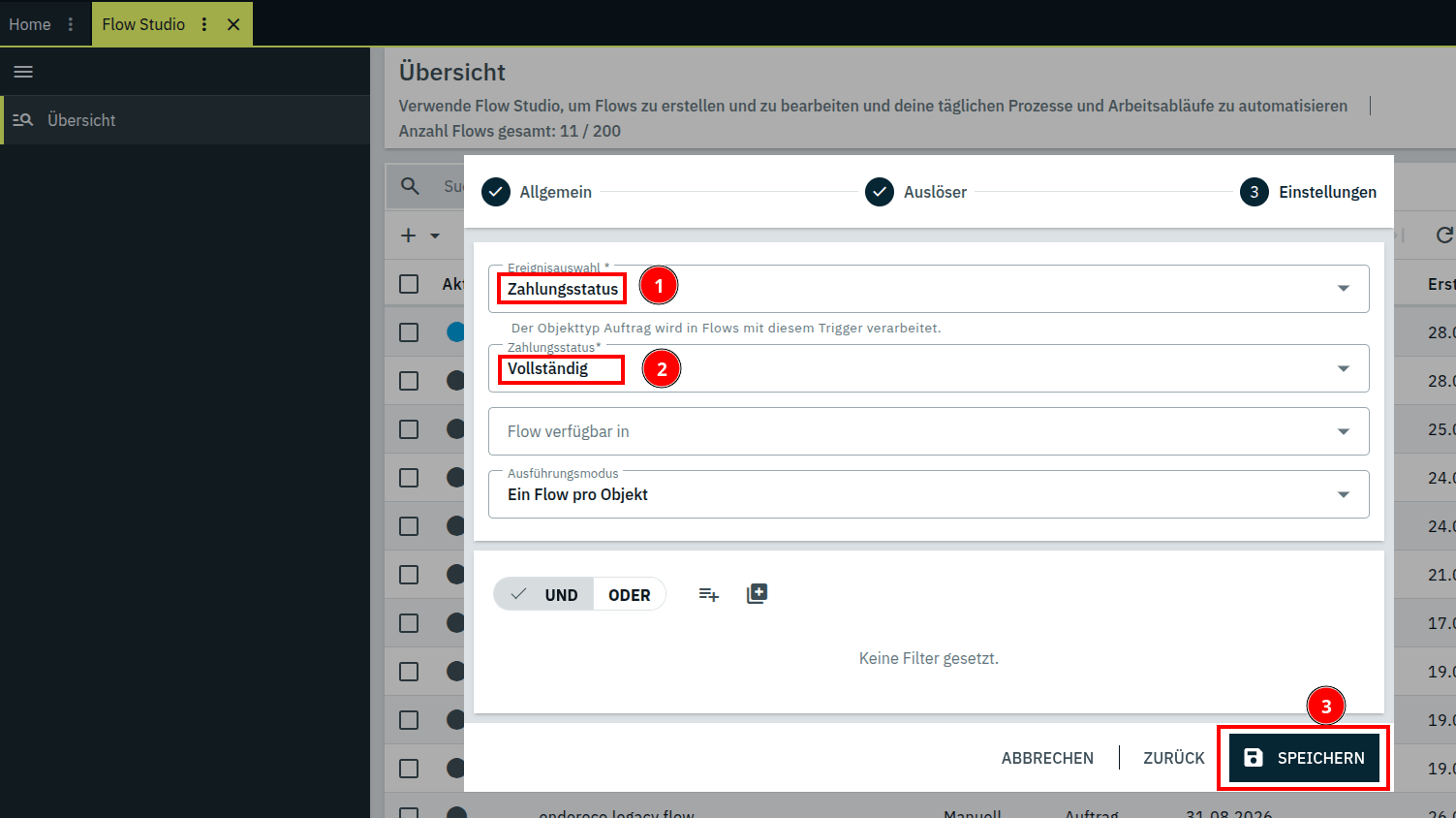
- In the next step, select Event Selection the entry Payment Status. A second field will appear below it, where you can Complete select—that's the „fully paid“ status.
- Drag the action from the palette Mark the address verification request on the artboard. The quickest way to find it is through the palette's search field.
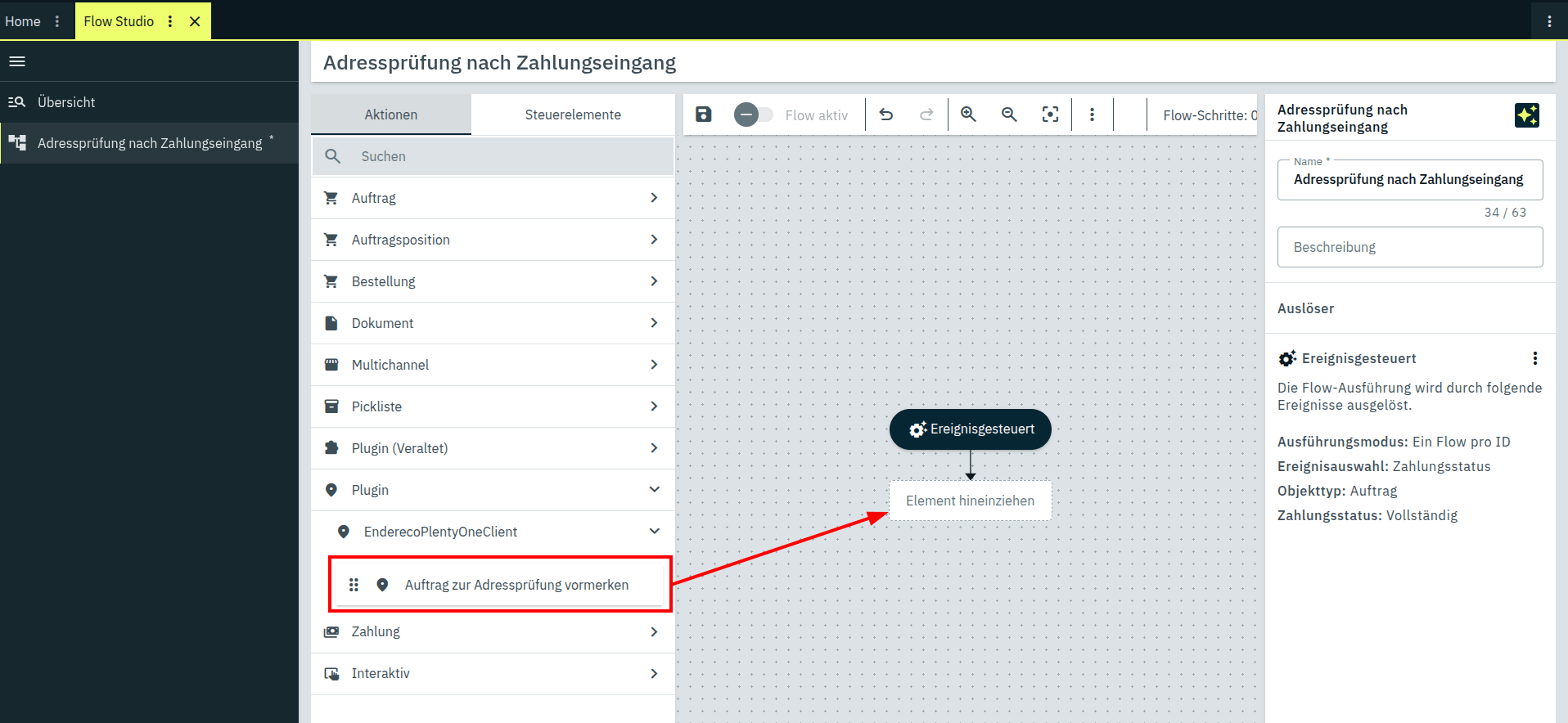
- Save the flow and activate it with Flow Active one.
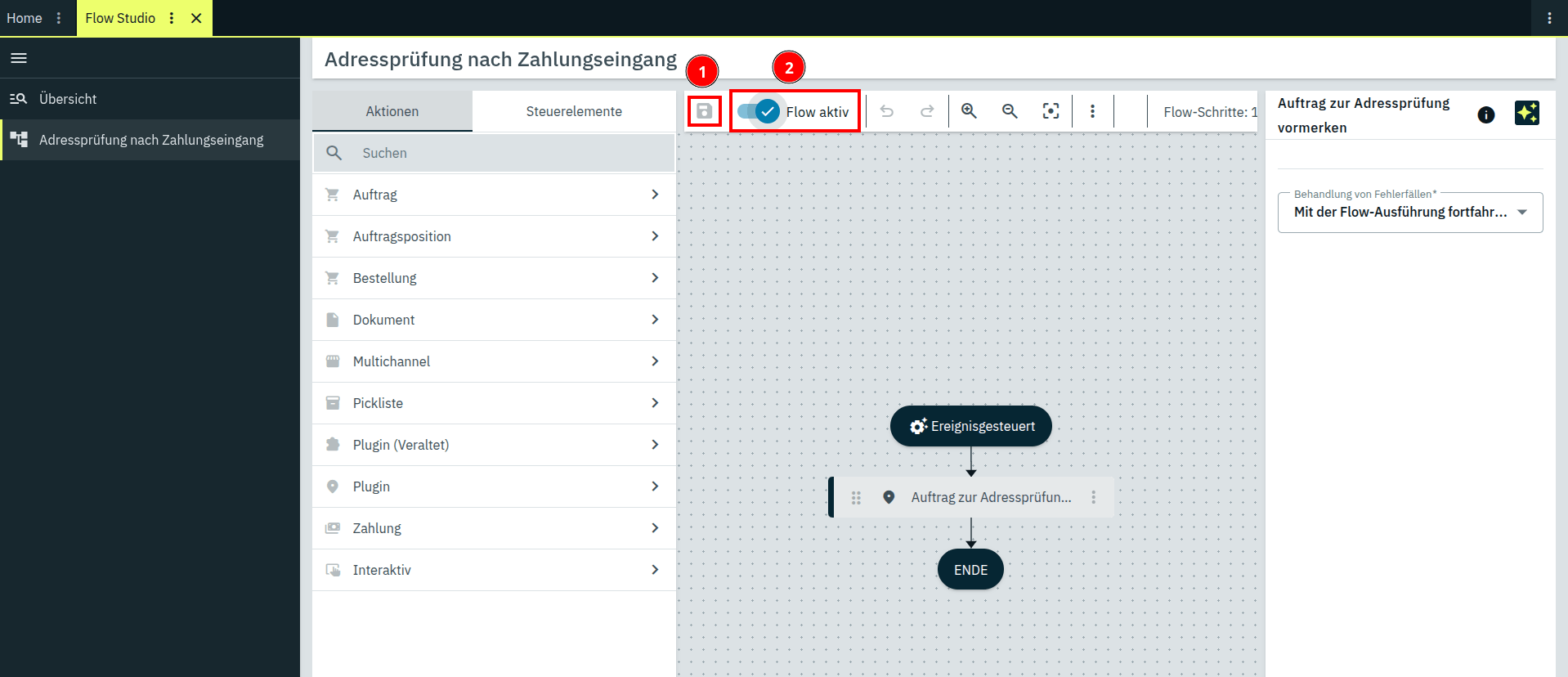
Example: Have an order that has already been reviewed reviewed again
Unlike automatic reservation upon order receipt—which generally processes an order only once—the same flow action can be Mark the address verification request You can also apply this to a job that the plugin has already completed. This is handy if you’ve corrected an address manually and want to review the result afterward. This time, you’ll use a manual trigger that you activate directly on the job—you don’t need to change anything in the „When should jobs be flagged for review?“ setting.
- Open Automation → Flow Studio, click the + icon and select "Create New Flow.".
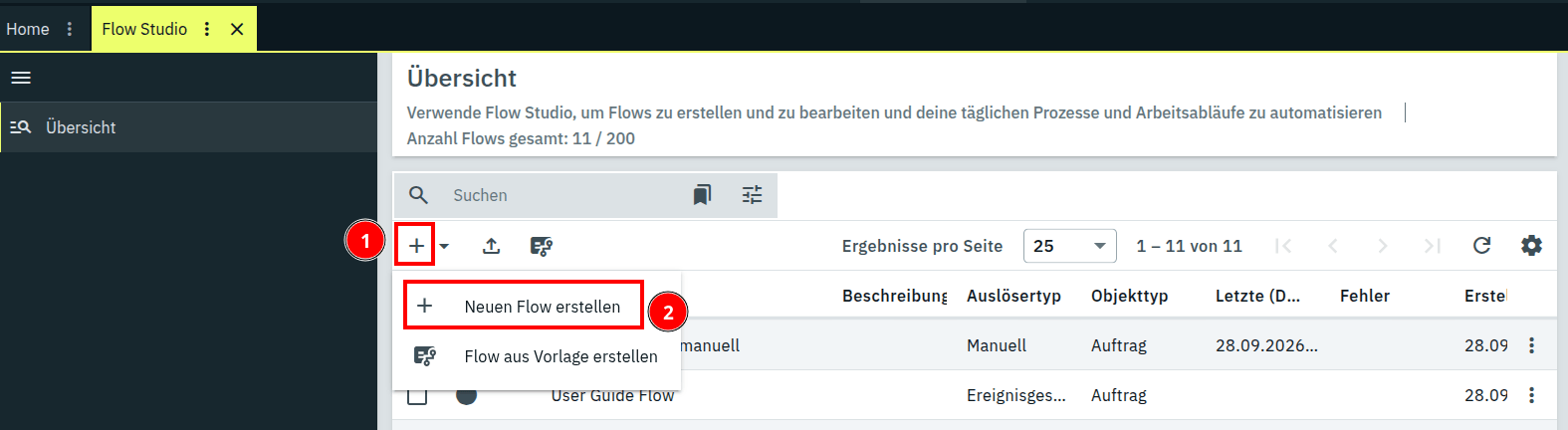
- Give the flow a name, such as Manually Verify the Address Again.
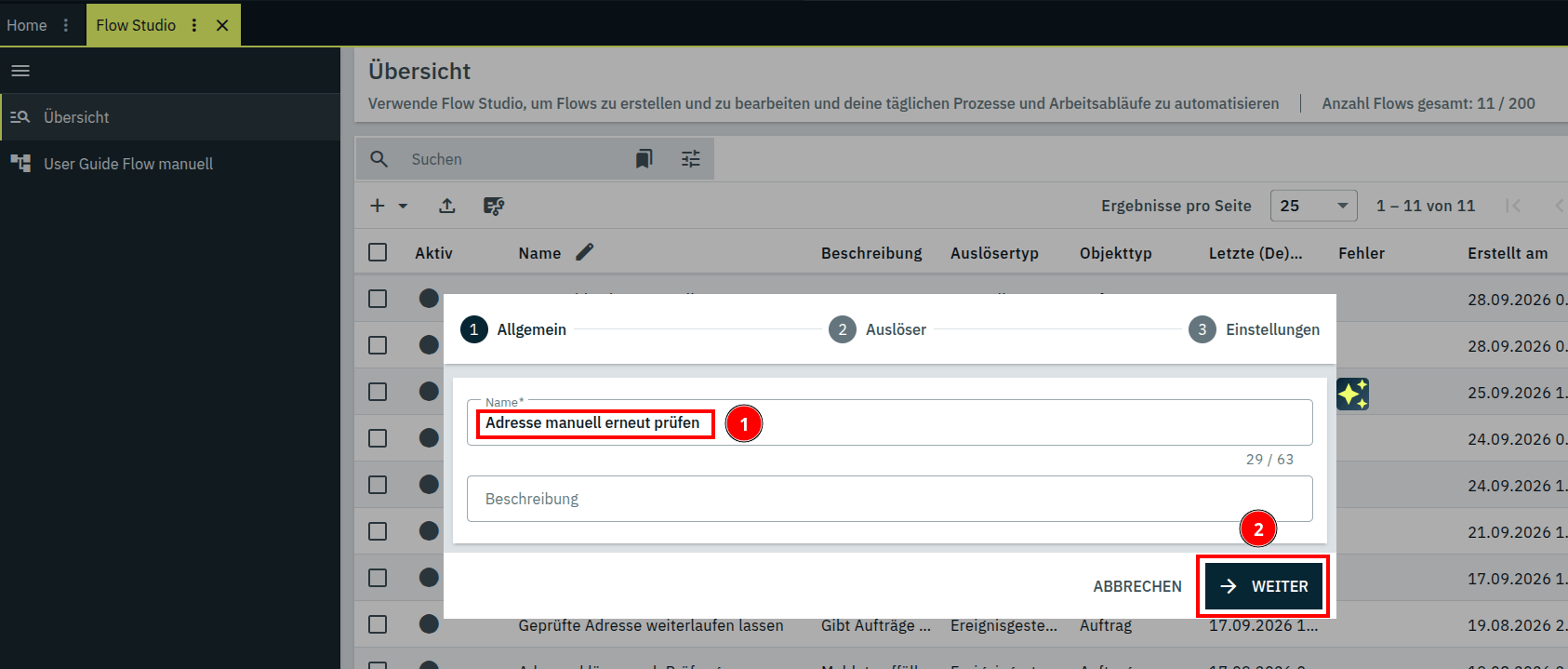
- Select as a trigger Manual.
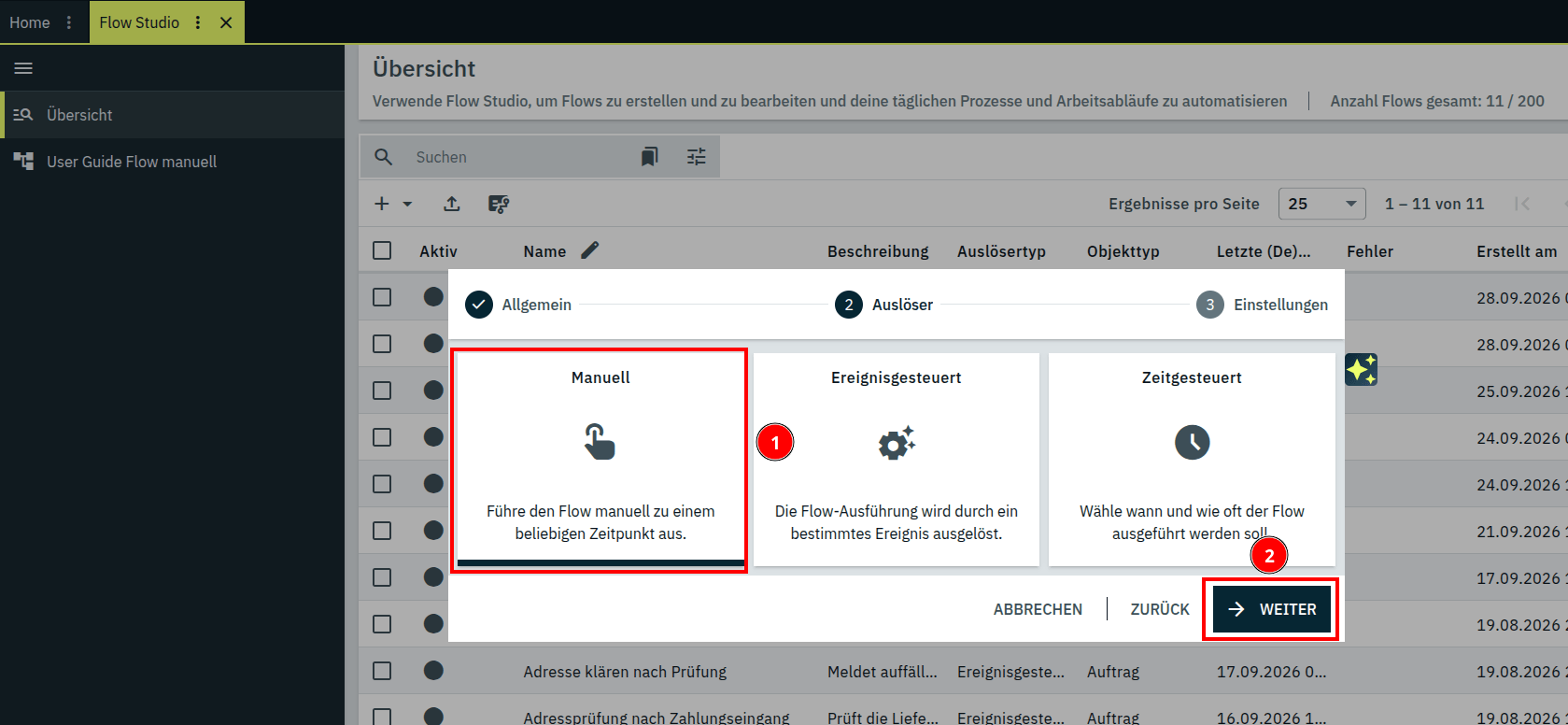
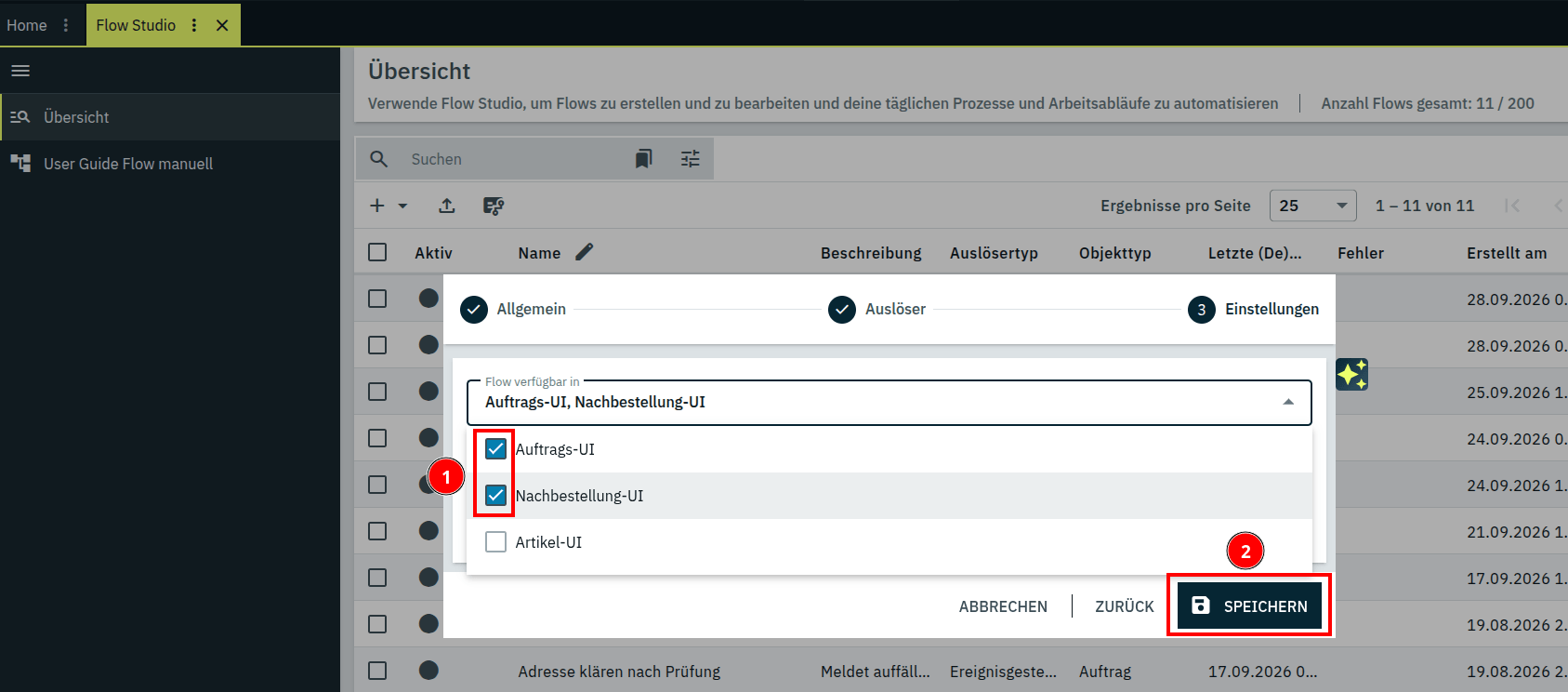
- Set to Flow is available in the check marks next to Order UI and Reorder UI – You can enable both at the same time, depending on where you want to manually trigger the flow later.
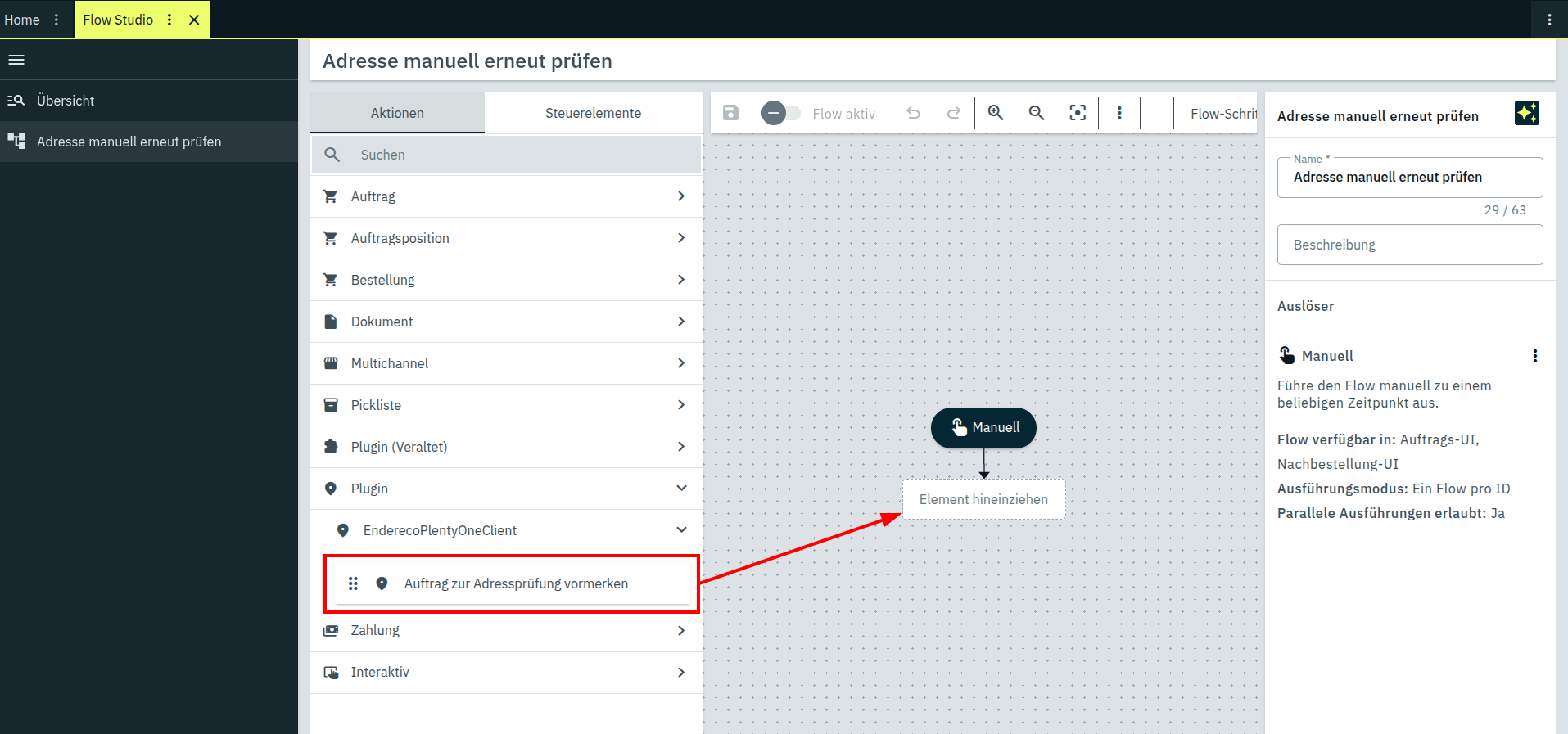
- Drag the action from the palette Mark the address verification request onto the artboard.
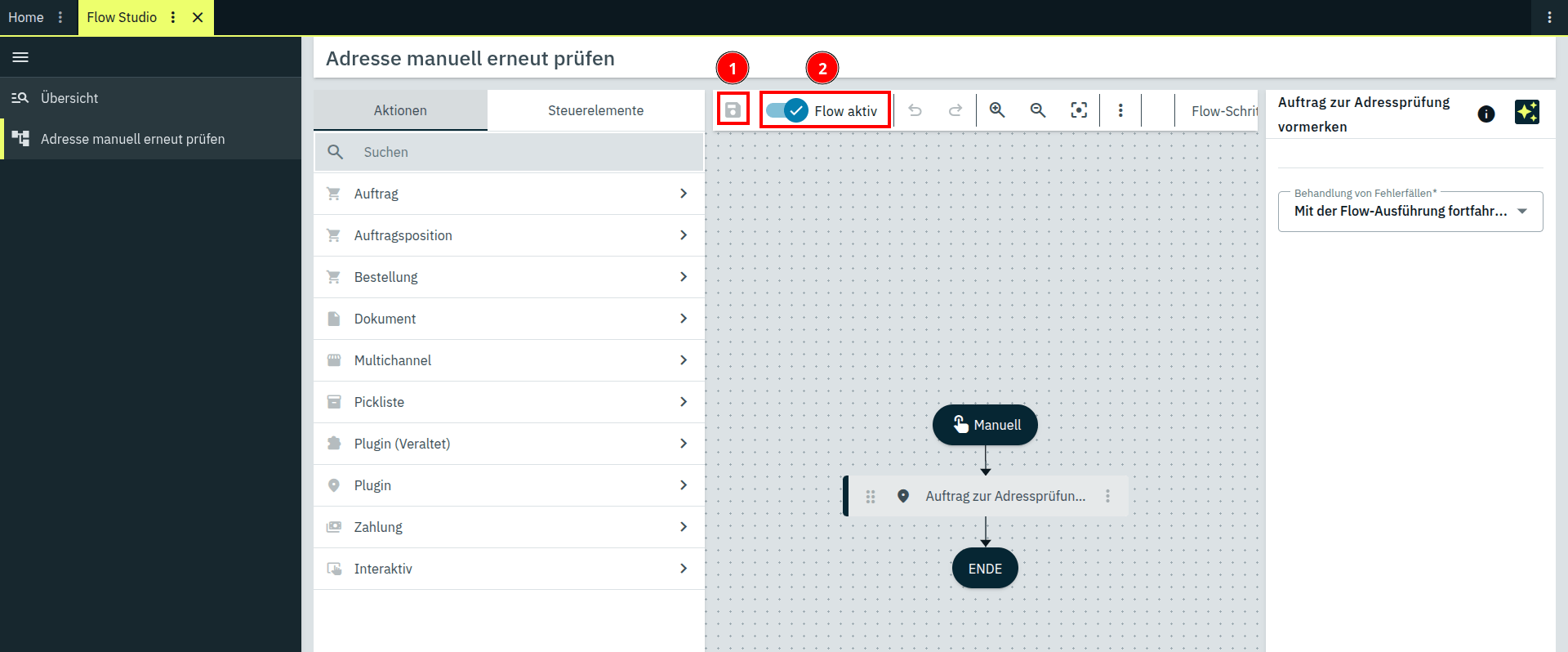
- Save the flow and activate it with Flow Active one.
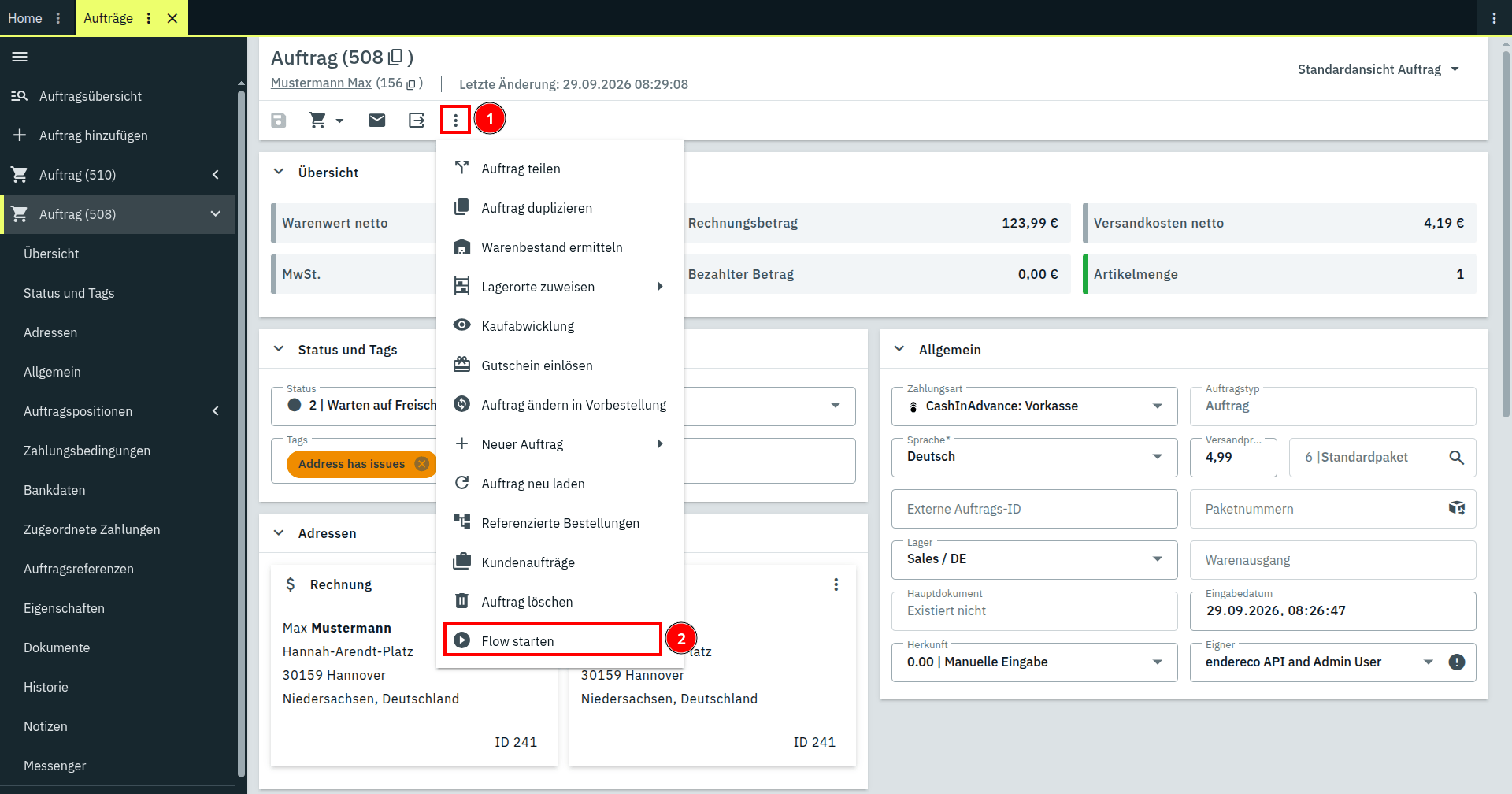
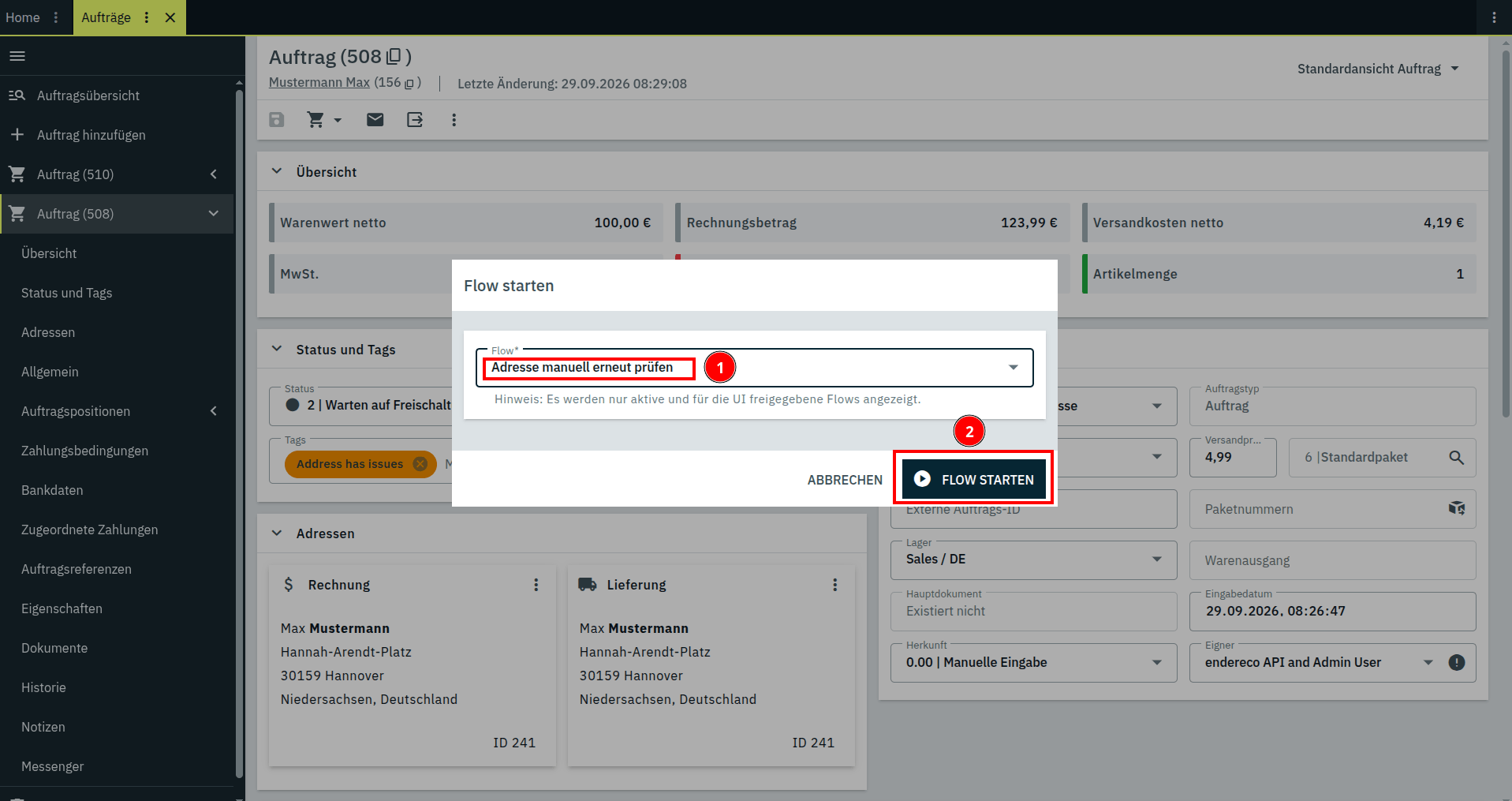
From now on, you can manually trigger the flow directly from the order.
Billing #
You are charged for every request that is actually checked—regardless of the response (correct, correctable, ambiguous, or not found—they all count the same). Attempts that fail—due to an incorrect API key or a timeout—cost nothing, even on repeated attempts. A request for which the validation is abandoned after 3 attempts (“Address validation failed”) is therefore not billed at all.
You can find the current prices here.
What the plugin doesn't do #
- It doesn't create an interface for processing the flagged addresses. These cases are assigned a tag, a property, and a comment; you decide everything else—for example, by creating your own workflow based on the tags. You can create an overview by displaying the specified status along with the corresponding uncorrectable addresses in the dashboard.
- It does not automatically recheck an address if it changes later—that's what the Flow action for re-flagging is for.
- It never changes your customer's address in the CRM; it only changes the shipping address on the order.
- It does not currently verify the personal postal number associated with a Packstation or post office address.
Support #
Questions about the organization and the ministry: support@endereco.de, Phone +49 (0) 931 – 663 98 39-0. Additional contact information can be found on the Support tab.


