The Data mass cleansing (also known as mass checking or data cleansing) is a crucial process for ensuring the integrity and reliability of large data sets. Incorrect, inconsistent or outdated data is identified, corrected and standardized.
We'll show you how our data cleansing service works and how you can use it!
Step 1: First you create your own account with your e-mail address, assign your own password and enter your first name, surname and company.
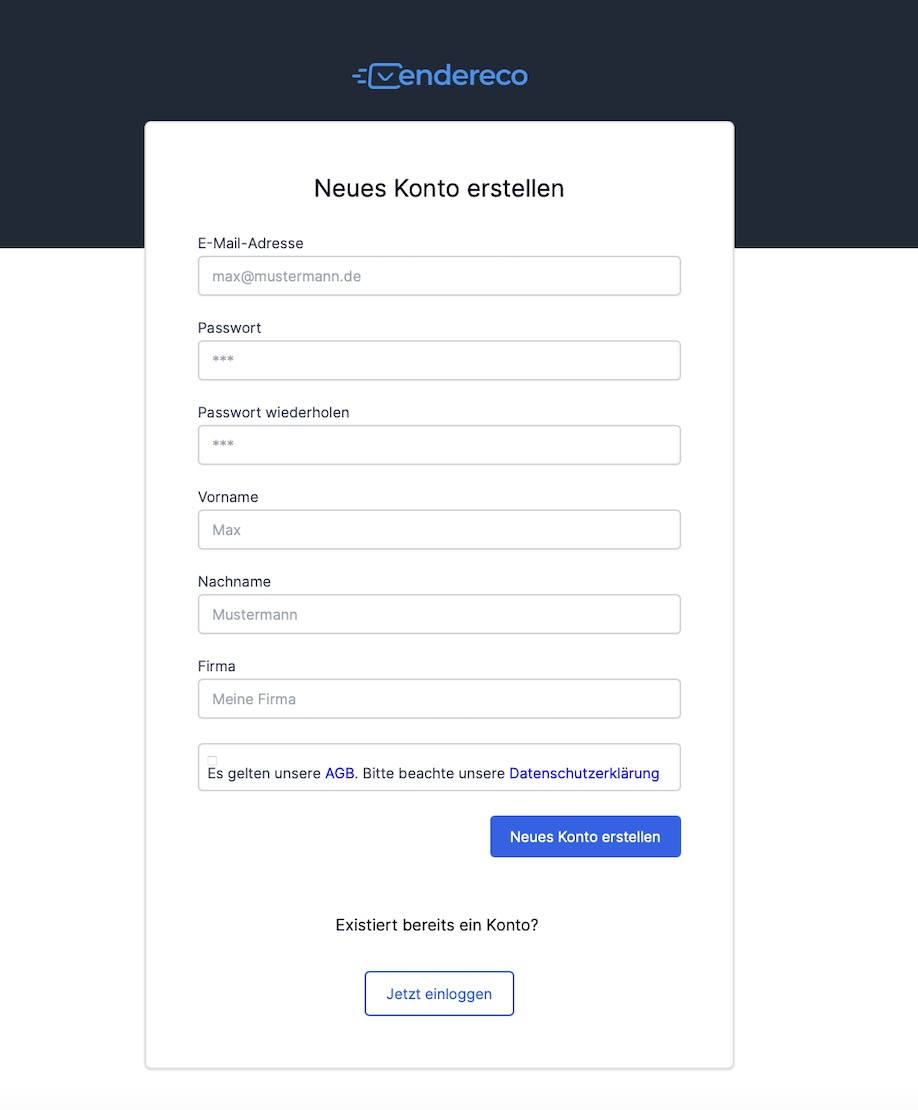
Step 2: As soon as you have created your own account, you will receive an e-mail confirmation. Click on the link in the e-mail to be forwarded directly to the login on our website.
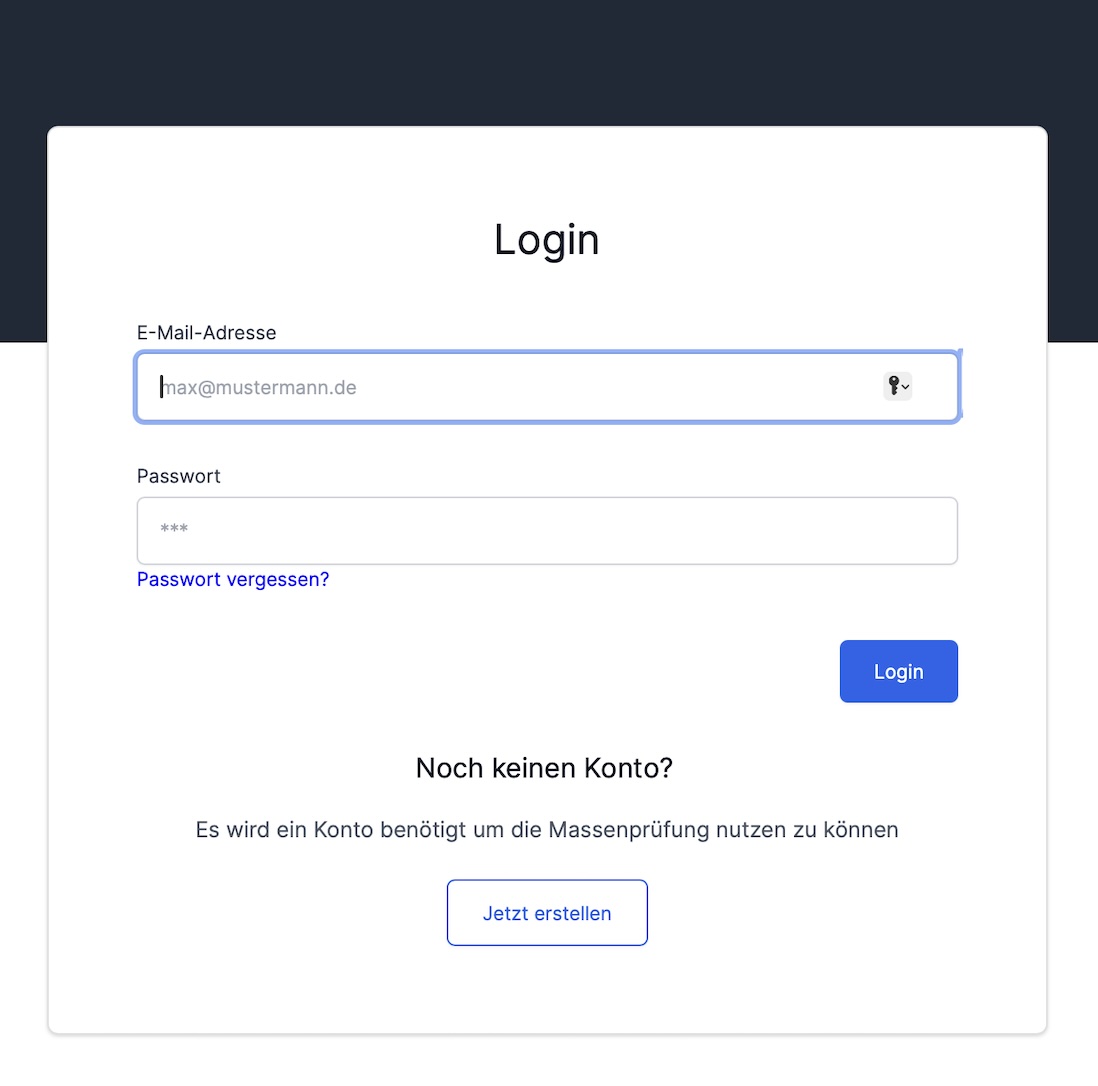
Step 3: Log in with your e-mail address and self-assigned password.
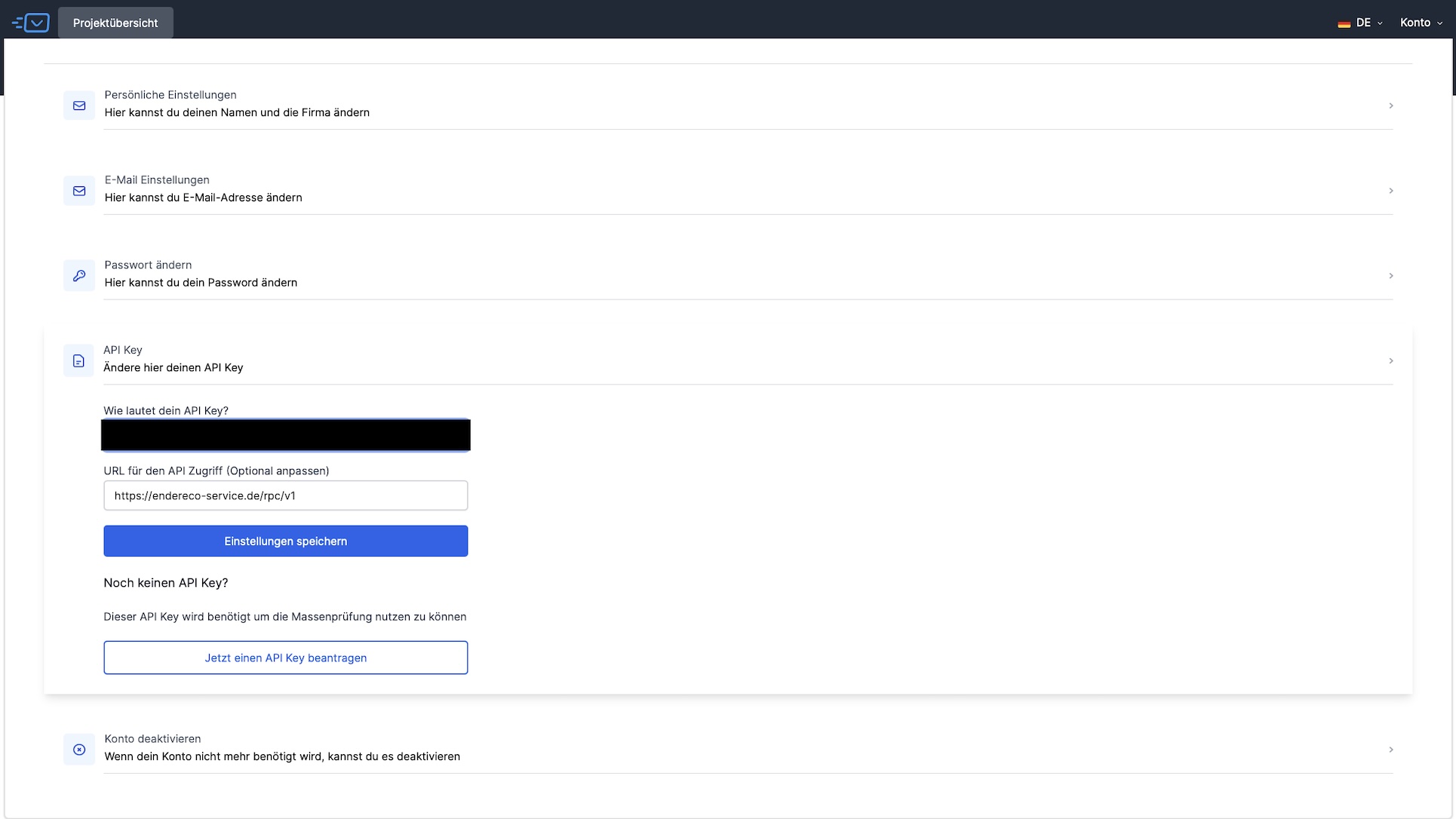
Step 4: To be able to use the service, you need a personal API key. Click on the button: Request API key now.
You will receive your API key from us by e-mail, which you copy.
Step 5: Enter the API key in the “What is your API key?” field.
Step 6: Now click on the button: + New project
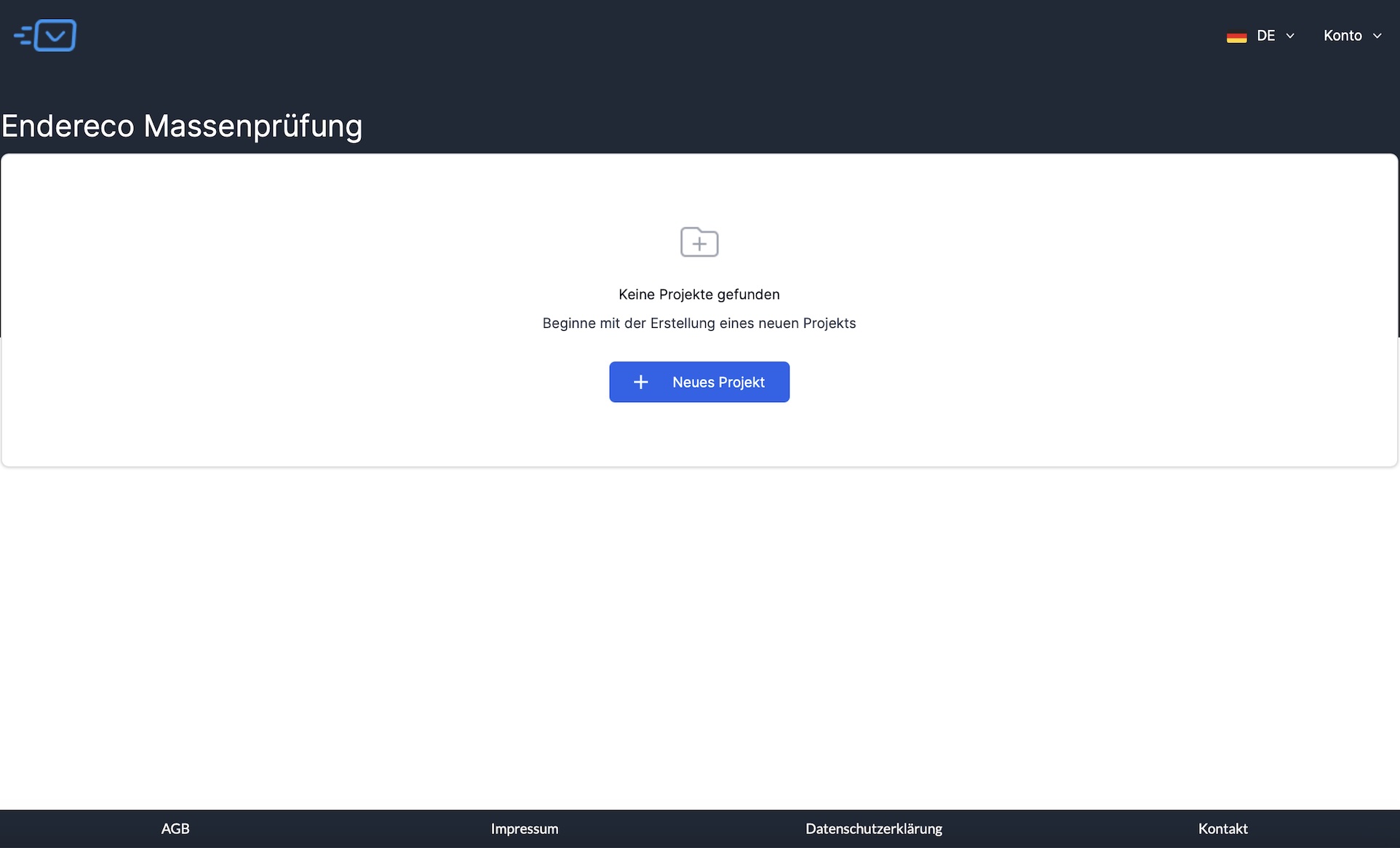
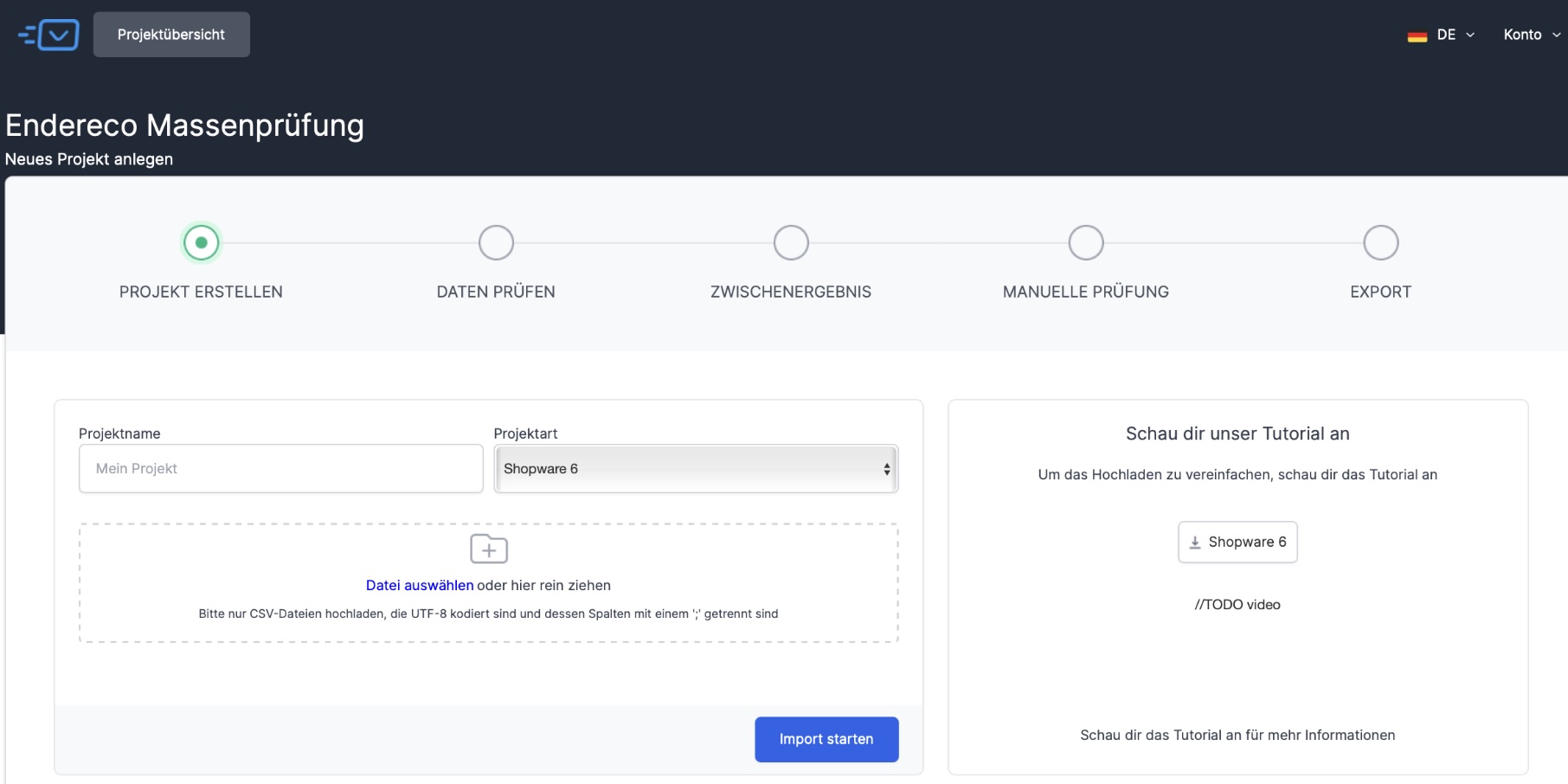
Step 7: Enter a project name of your choice and select the project type from the drop-down menu.
You can easily upload the file with the data you want to check via “Select file“ or by drag & drop. Now click: “Start import “
The file must be in CSV format, UTF-8 coded and separated with “;“.
You can also download an import example. To do this, click on the “Shopware 6“ button.
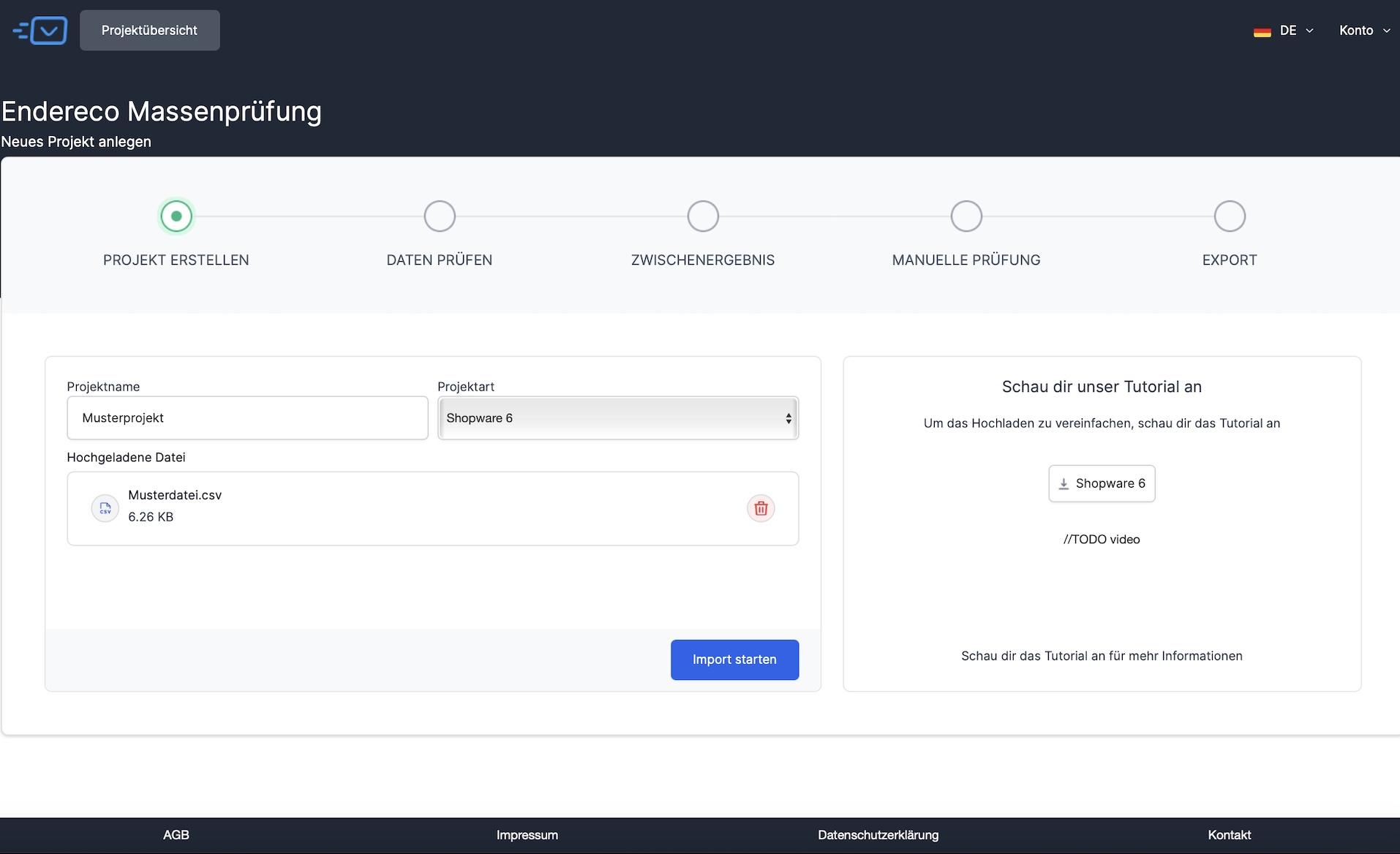
Step 8: Data has been successfully imported into the system and can now be checked.
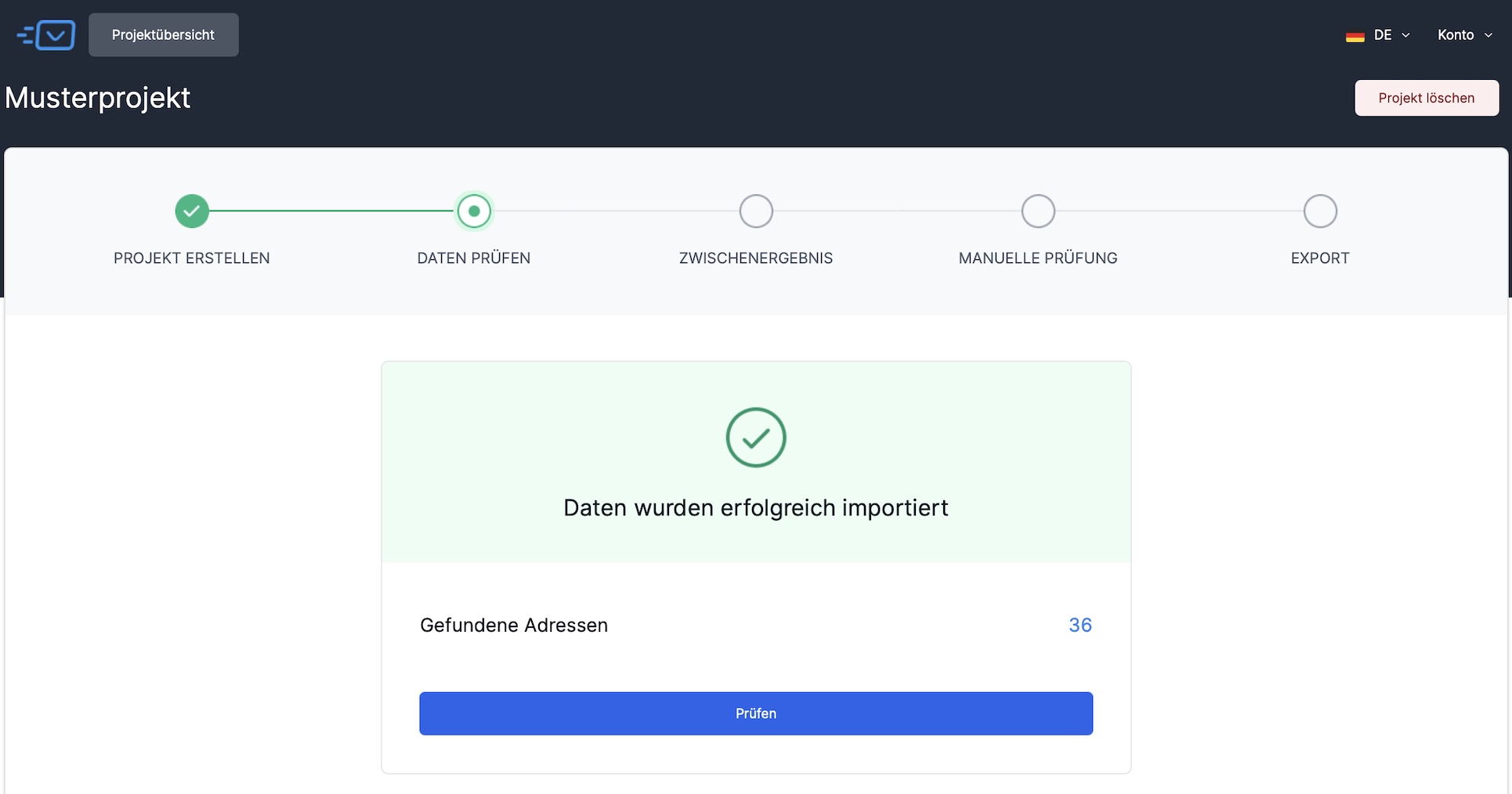
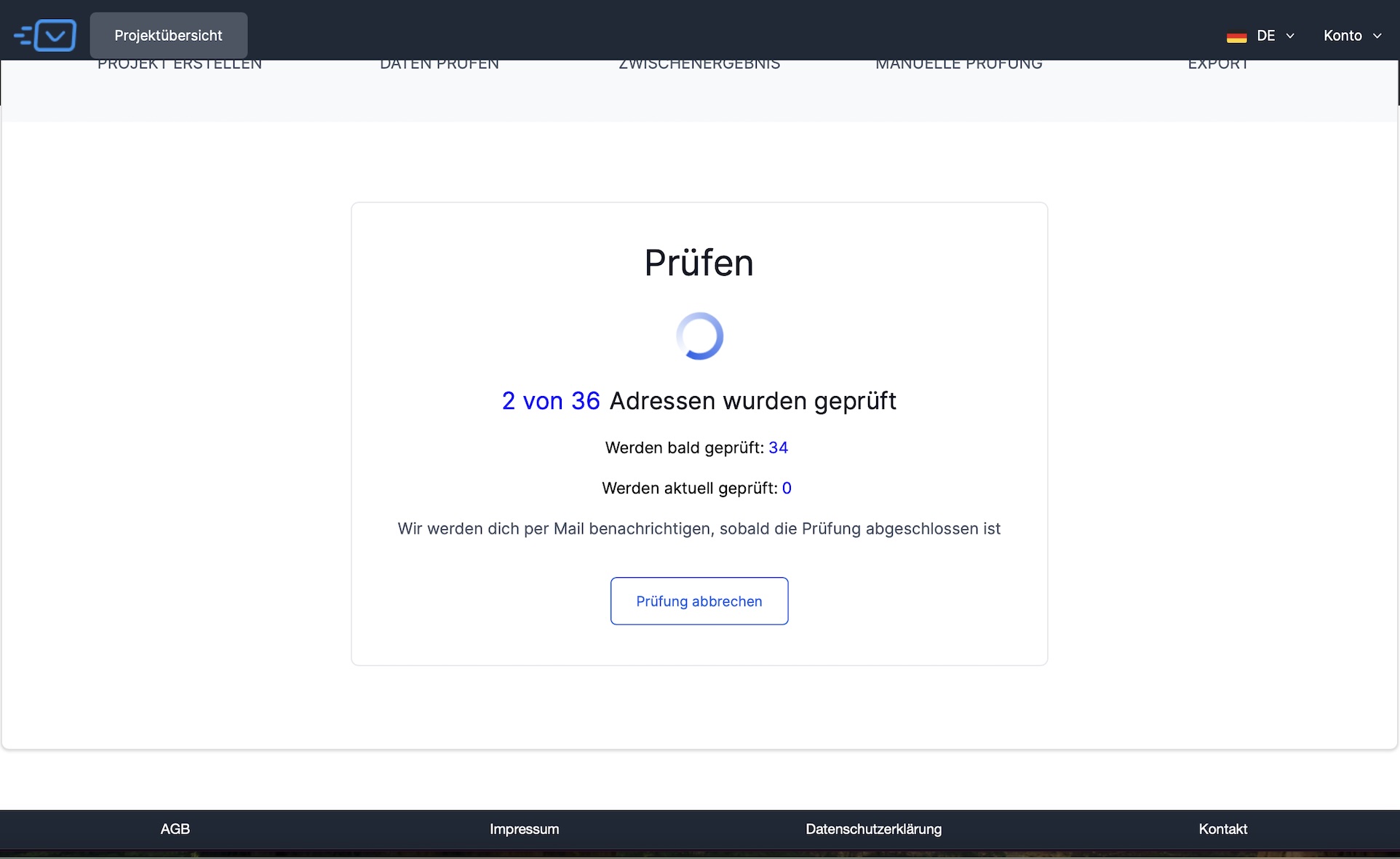
Step 9: endereco checks your address file in the background. This may take some time.
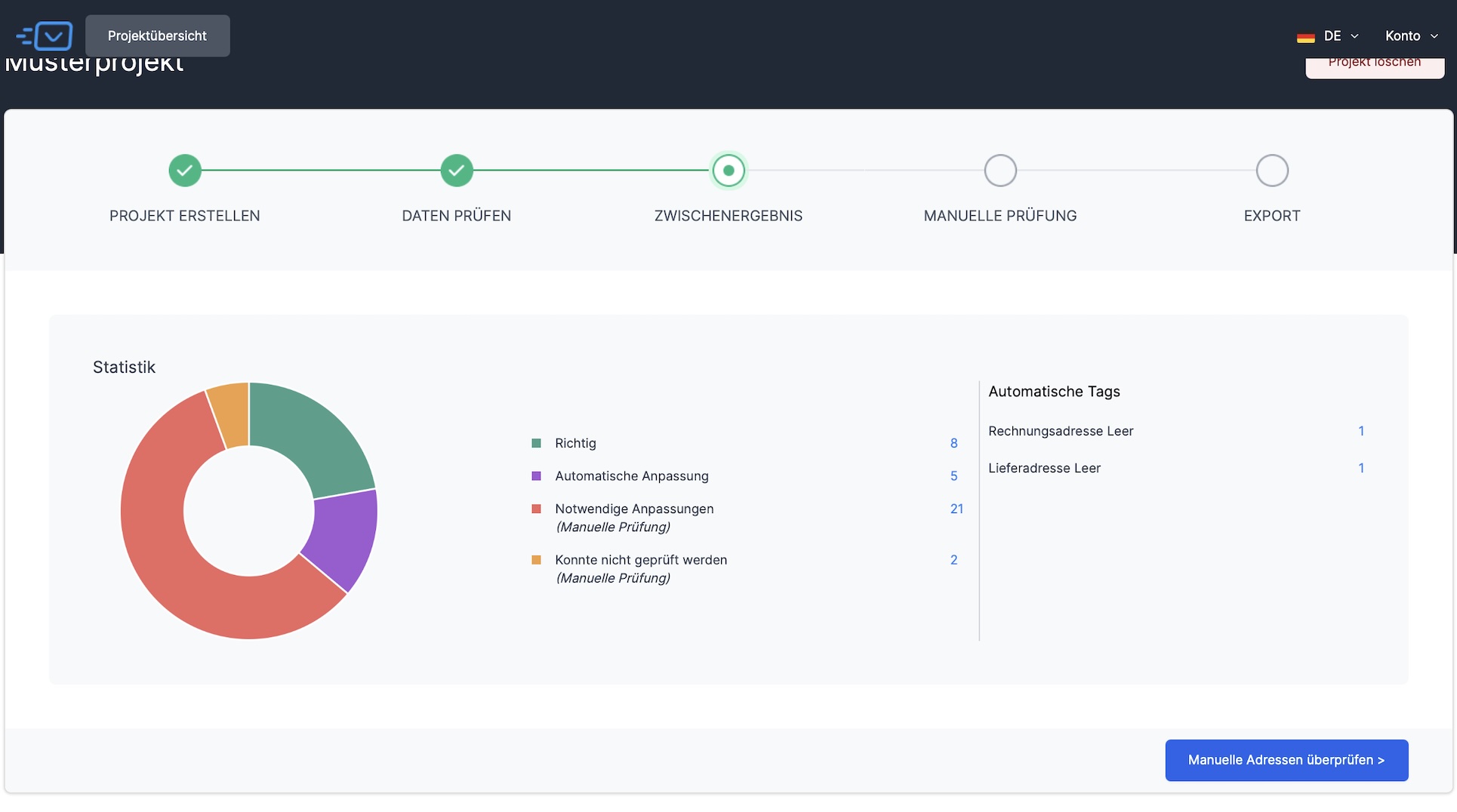
Step 10: Once the data check has been completed, the corresponding statistics will open. This shows you how much data is correct, has been automatically adjusted, where necessary adjustments need to be made (manual check) and how much data could not be checked (manual check). Automatic tags, e.g. billing address empty or delivery address empty, are also displayed if they are missing.
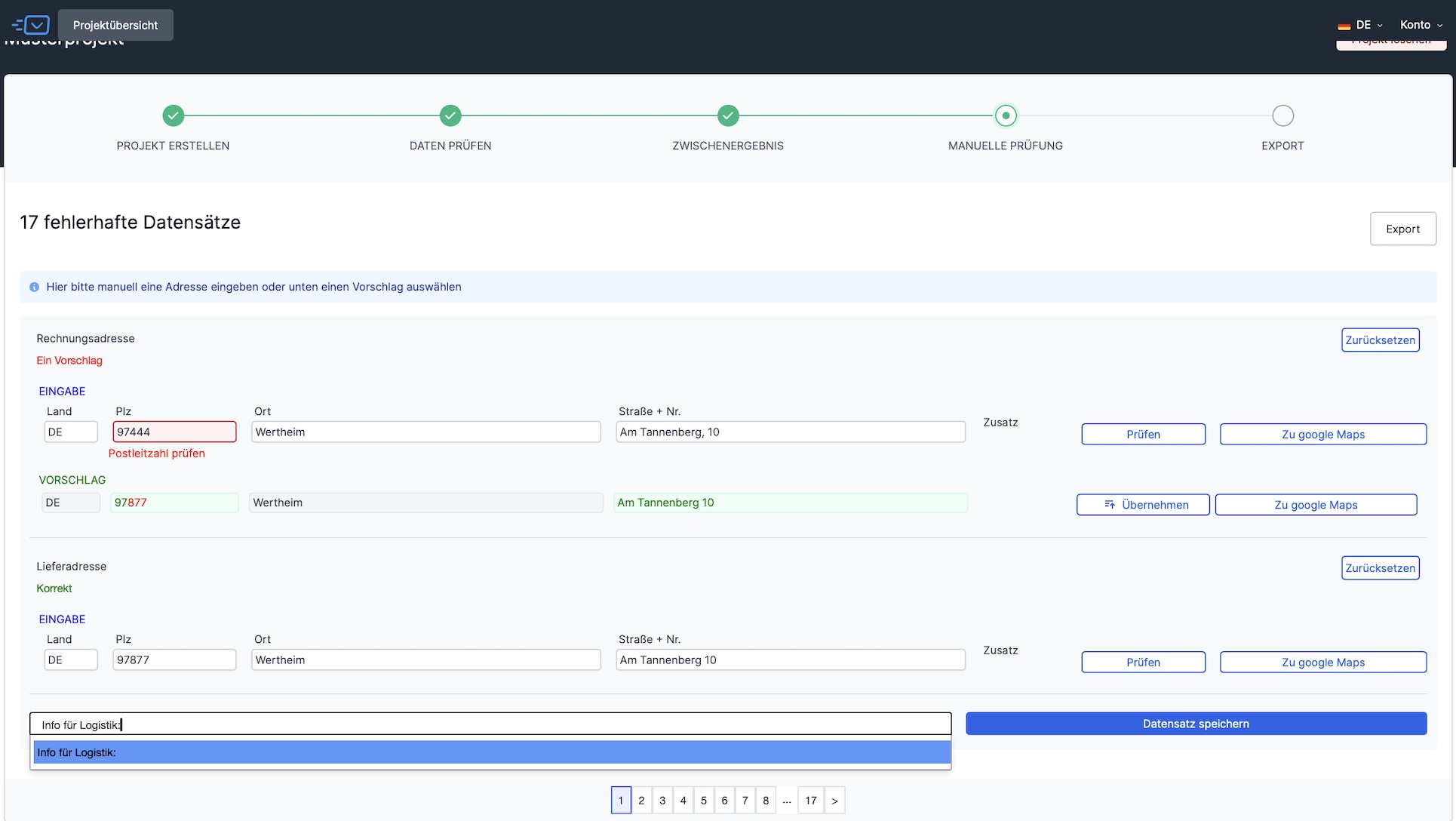
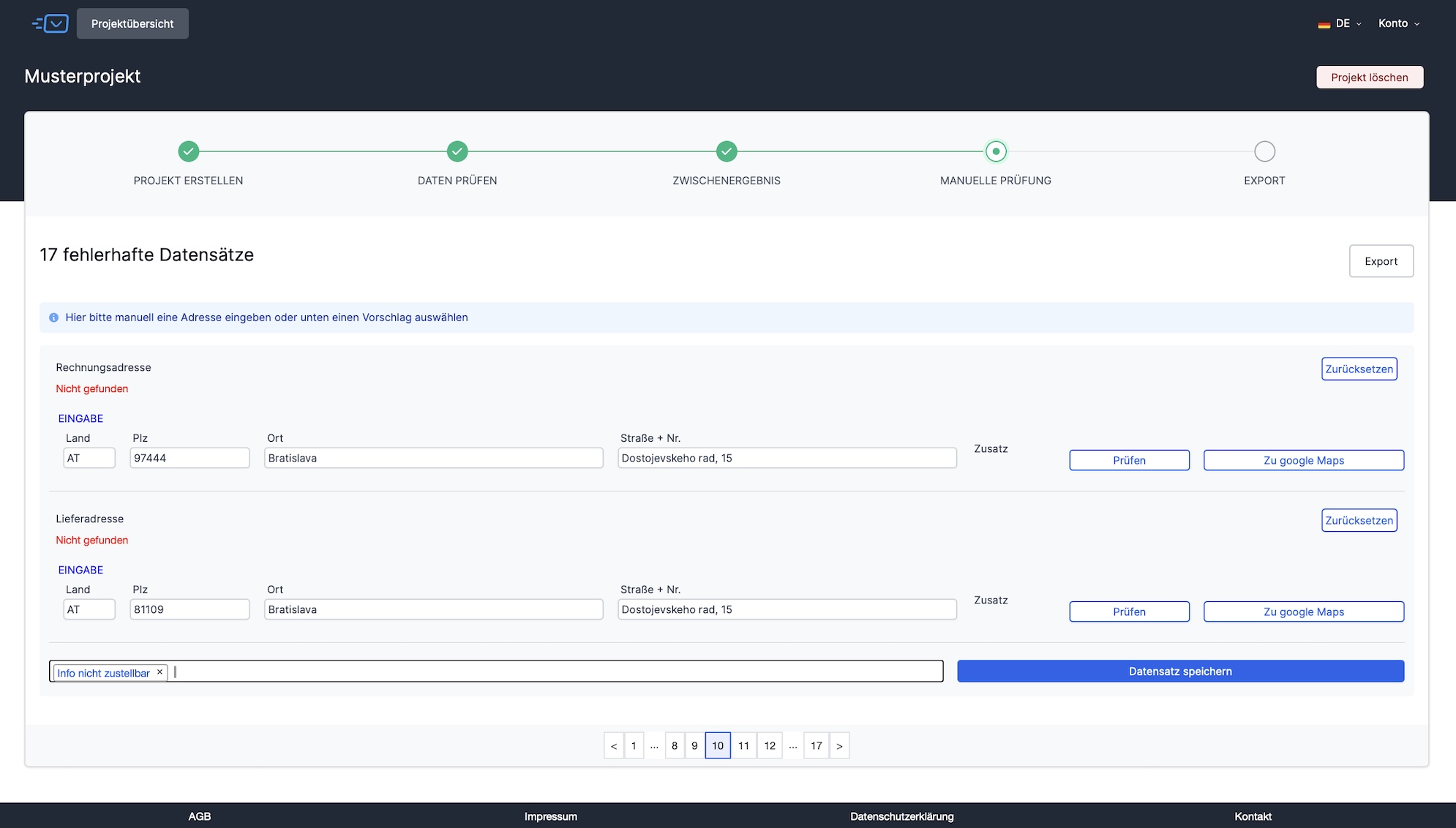
Step 11: Manual check - The number of incorrect data records (e.g. 17 incorrect data records) is displayed. Fields highlighted in red mean: check. Fields highlighted in green are correct. The Check button can be used to check each individual data record that requires manual checking. With the “Apply” button, the corrections are correctly applied by endereco in your data file. Then click on “Save data record”.
Step 12: You also have the option of entering internal information. (e.g. information for logistics or another note for you).
Step 13: If a billing address and/or delivery address is not found, “not found” appears in red. endereco displays a suggestion that you can accept by clicking on “Save record”.
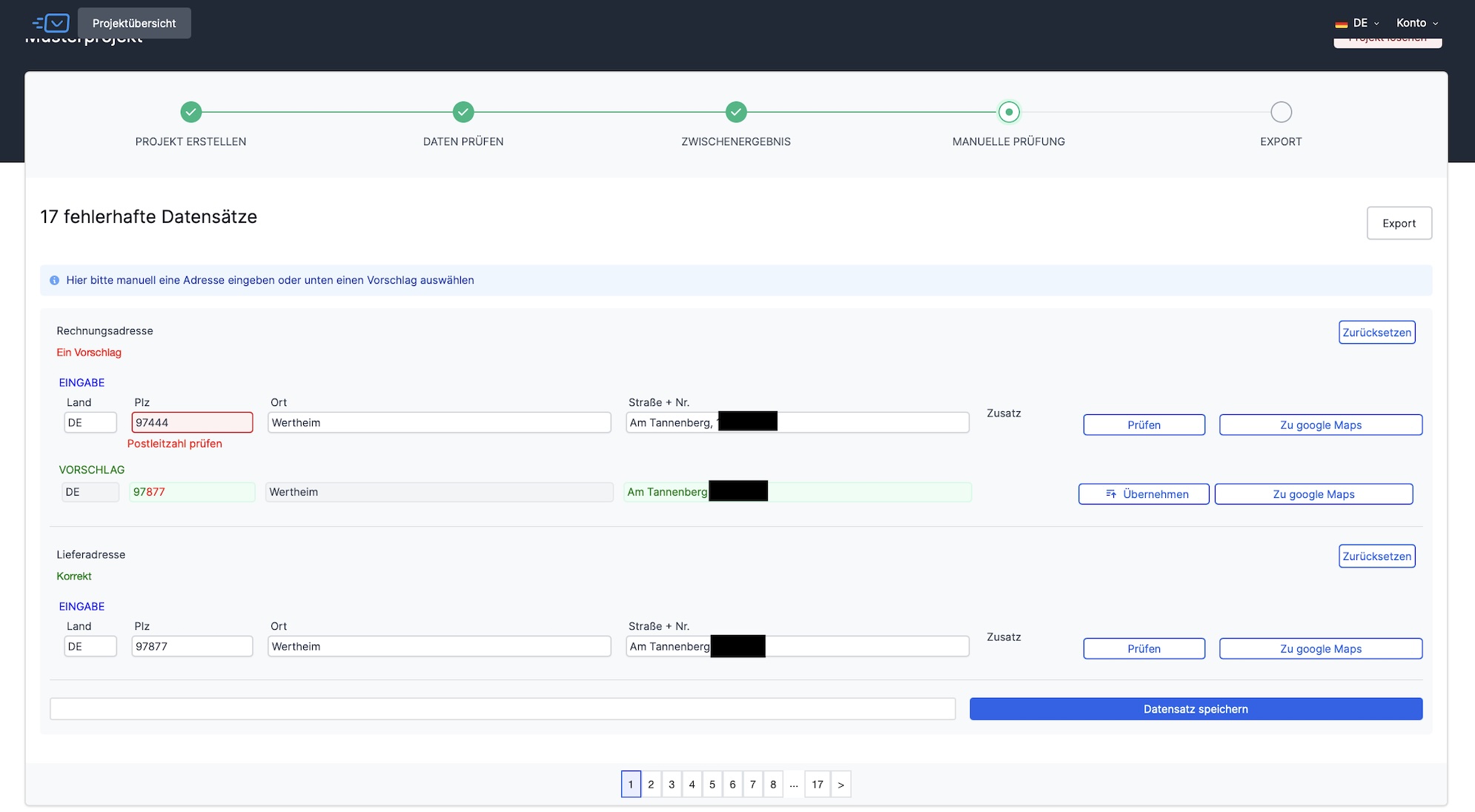
Step 14: You can also enter comments, i.e. our example in the note: „Info not deliverable“. Then click on “Save data record”.
Step 15: As soon as the manual check has been completed, a new statistics window appears. The graph on the left shows your data before the manual check and the graph on the right shows your data after the manual check and cleanup.
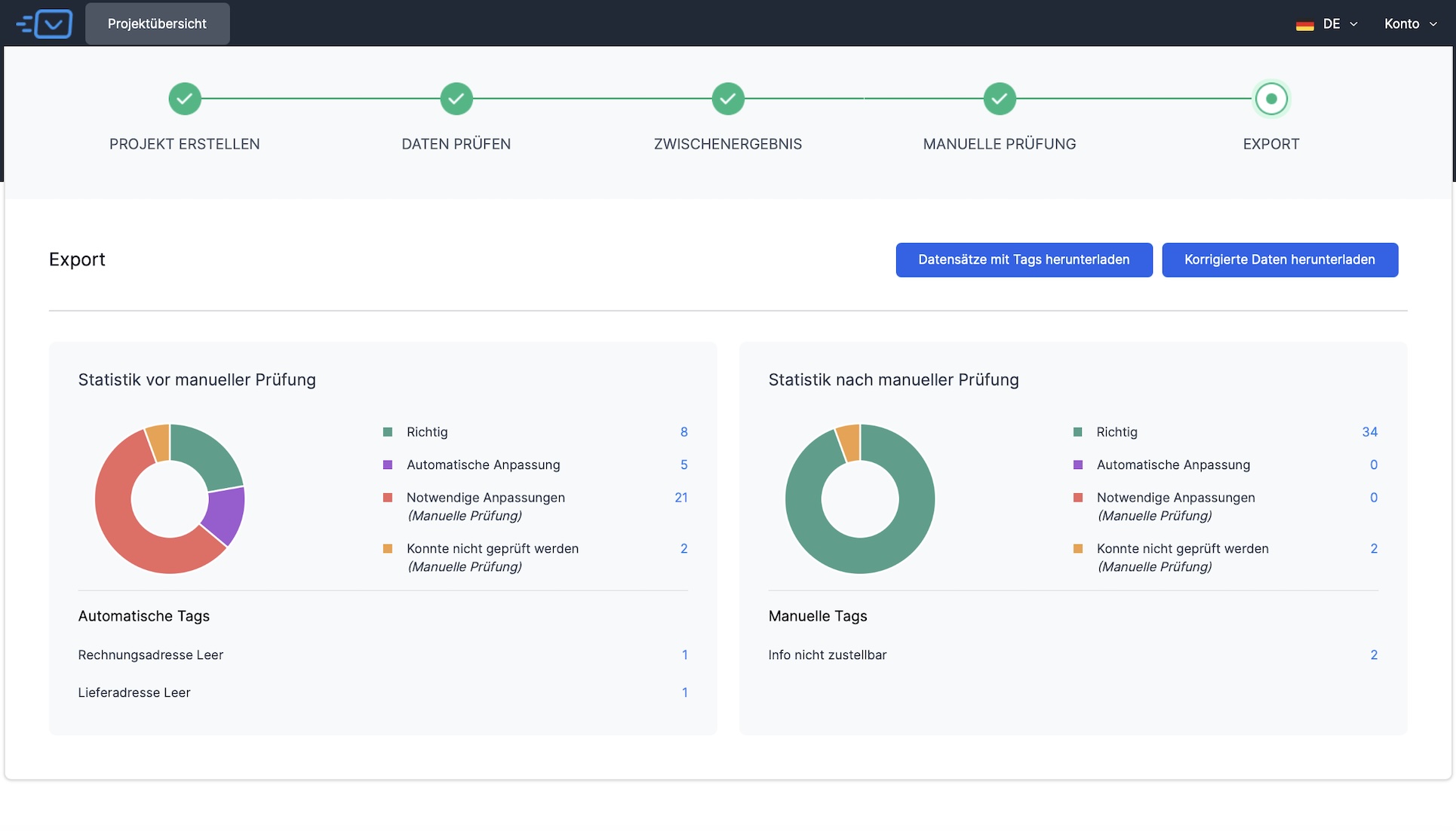
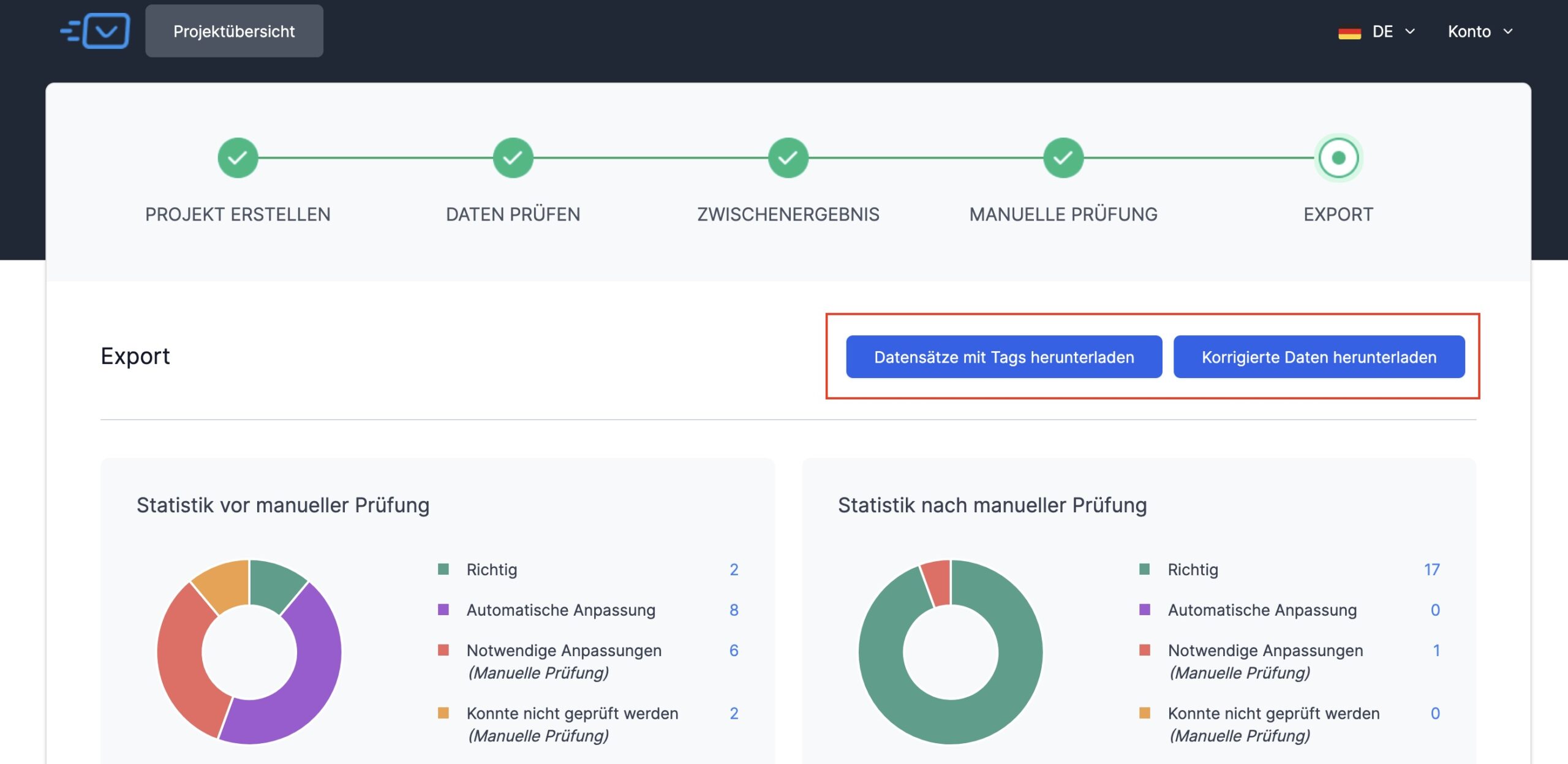
Step 16: After the check, you can download the checked and cleansed data in two variants:
- Data records with tags - All data records with manually inserted tags
- Corrected data - Corrected data as in your upload
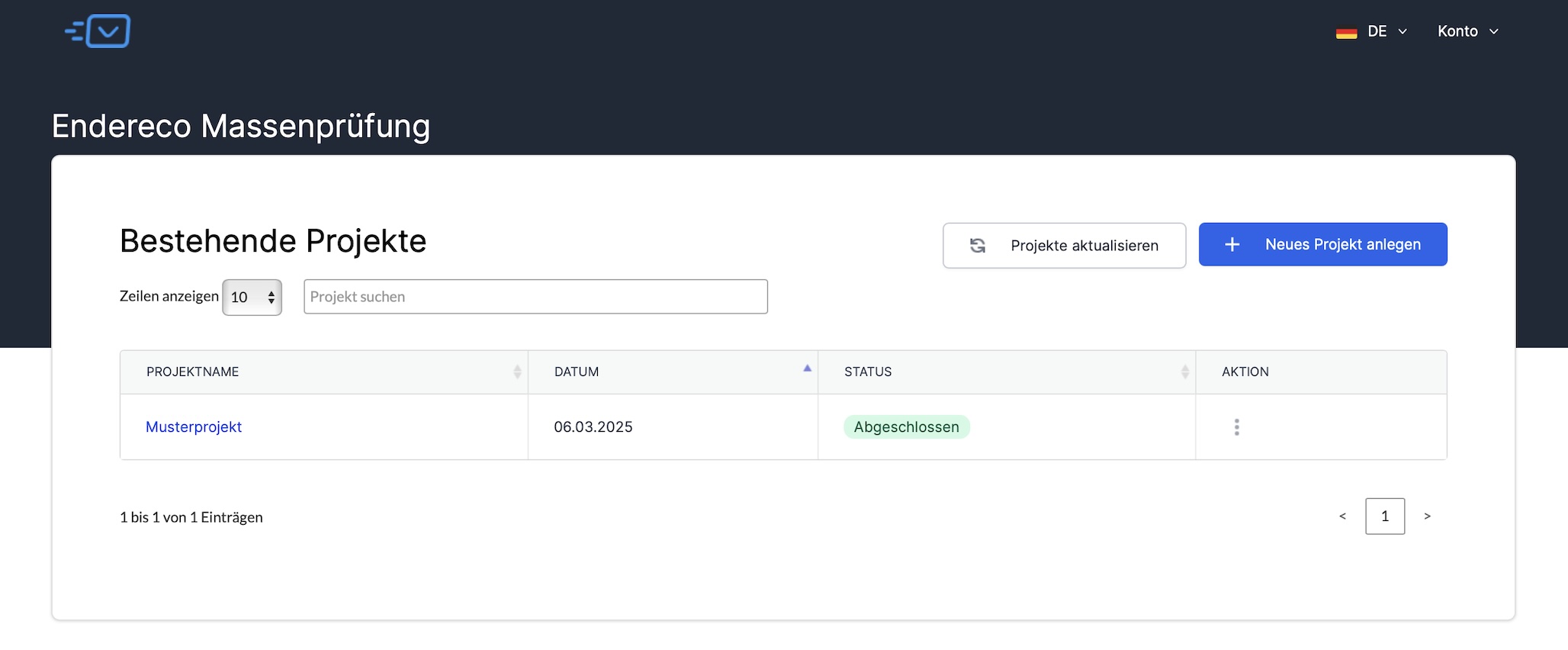
Step 17: After the endereco check, the existing project appears with the date and status completed. If you would like to create another project, click on “+ Create new project”.